For many voters, your social media accounts are where they first hear about a deadline, early voting hours, or a change after a storm. That makes every post matter. AI is good at the parts that eat your time: turning one message into five platform versions, building a calendar, and keeping the look and tone consistent. It is not good at knowing whether a date is right. These workflows keep people in charge of the facts and the final say.
Everything here uses green (public) information: your website, your published materials, and official calendars. See the Safe Use Framework if you’re not sure what counts as green.
Work from one folder
Keep your social media work in one project folder, such as Social Media 2026. It can be on your C: drive, OneDrive, or an external drive. Save the approved brand board and the verification table there.
Open the folder in the Claude desktop app (Code tab, then under the message box choose Local and Open folder…) or the ChatGPT desktop app (open Codex, click Add new project or press Ctrl+O, then pick the folder). To add more folders to a ChatGPT project later, open the project menu, choose Edit project, then Add folder. Then just say what you want: “Use the brand board and the verification table in this folder to write this week’s early voting posts for Facebook and Instagram.” The drafts land in the same folder, next to the facts they came from. Folder projects walks through the setup.
You can say your prompts out loud instead of typing them (on Windows, press the Windows key + H to start dictation). See Speak your prompts, or type them.
Use cases in this section
 One possible outcomeGreen data classification· Public data
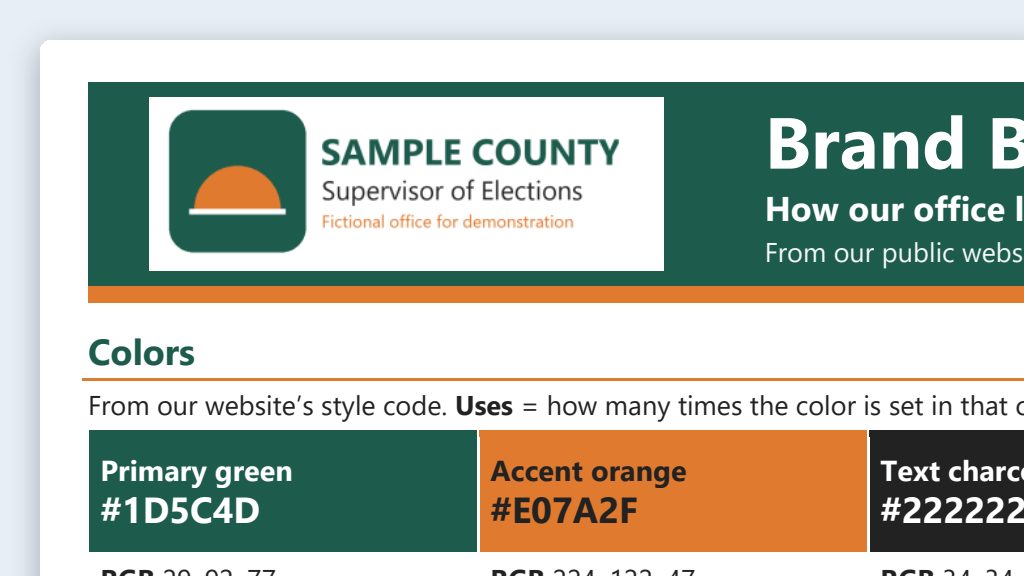
Brand board from your public website
Have the AI read your public website and draft a short brand board: colors, fonts, logo rules, tone, words to use, hashtags, and sign-offs.
- By hand
- 4–6 hours
- With AI
- About 1 hour
 One possible outcomeGreen data classification· Public data
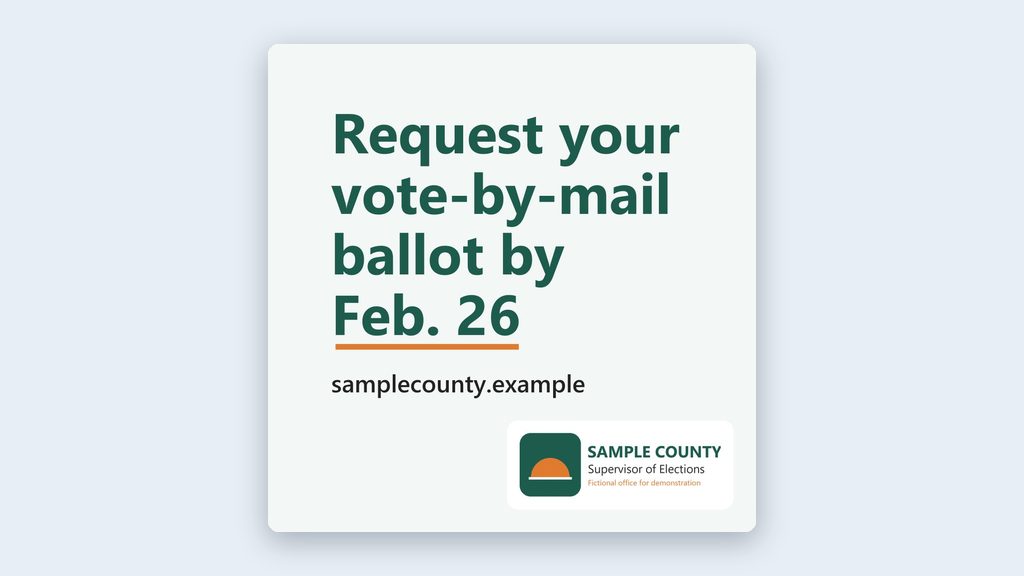
On-brand image prompts, with firm limits
Have ChatGPT make simple on-brand graphics from your brand board, or have Claude write image prompts or a text-only card, with alt text for each.
- By hand
- 30–60 minutes per graphic
- With AI
- 10–15 minutes per graphic
 One possible outcomeGreen data classification· Public data
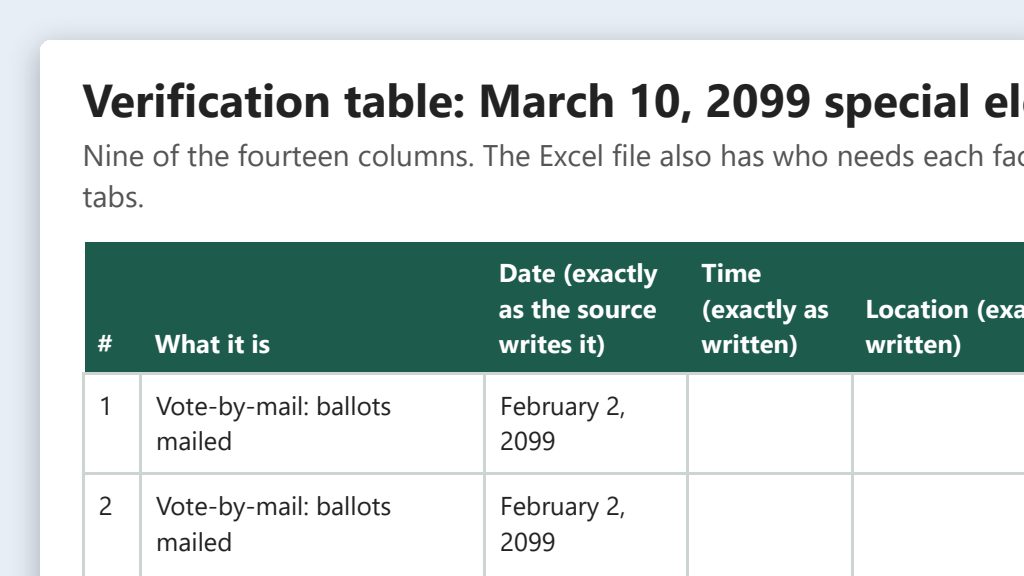
Election-cycle content calendar with a verification table
Have the AI pull every date, time, and place from official sources into a table, have a person sign off, then build the posting calendar from it.
- By hand
- 1–2 days
- With AI
- 3–4 hours
 One possible outcomeGreen data classification· Public data
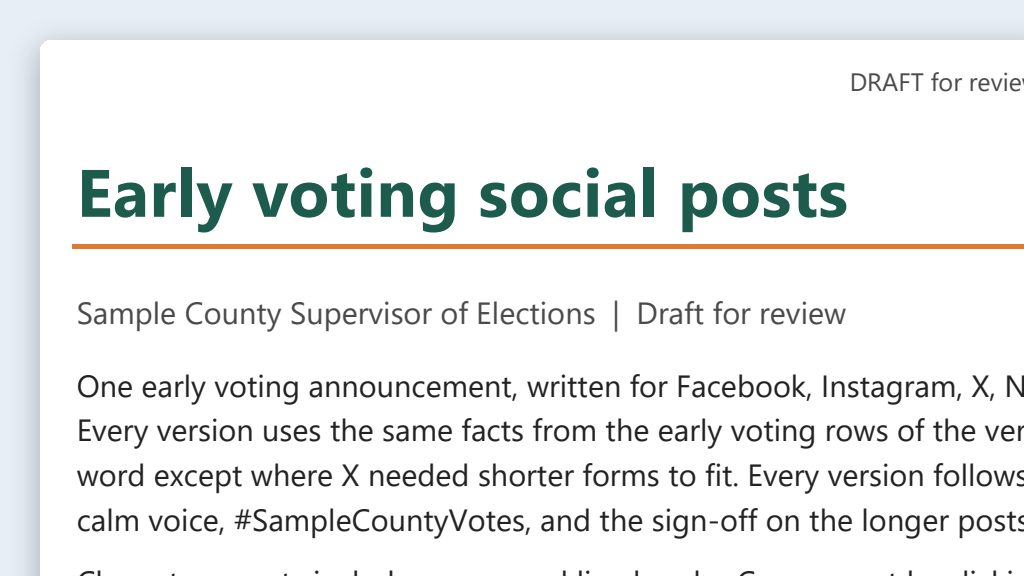
One message, five platforms
Turn one verified message into posts for Facebook, Instagram, X, Nextdoor, and LinkedIn, each within the platform’s limits, with alt text.
- By hand
- 45–60 minutes per message
- With AI
- 15–20 minutes
 One possible outcomeGreen data classification· Public data
Emergency and schedule-change templates
Before hurricane season, have the AI write fill-in-the-blank posts for closures, polling place moves, and deadline changes, so you only add verified facts.
- By hand
- 30–60 minutes per post, under pressure
- With AI
- 5–10 minutes to fill in and approve
The workflow at a glance
One page of colors, fonts, logo rules, tone, hashtags, and sign-offs, drafted from your public website and approved by the office. Build it once; update it when things change.
Content calendar with a verification table
Every date, time, and location, each with its official source, checked and signed off by a person before any post is scheduled.
One verified message becomes versions for Facebook, Instagram, X, Nextdoor, and LinkedIn, with alt text, and a graphic for every post (see which tool makes the image). Graphics follow the image prompt rules.
A fact check against the verification table, then your Supervisor’s approval, using the checklist below.
Schedule
Only approved posts go into your scheduling tool. If a fact changes, update the verification table first, then every post that uses it.
One more piece sits outside the regular cycle: emergency and schedule-change templates. Write and approve them before hurricane season so that, in a storm, you only fill in verified facts.
Graphics: which tool makes the image?
A post with a picture gets noticed. A post without one usually scrolls right past. So plan a graphic for every post. The catch is that not every AI tool can make one, and it depends on which app you’re writing in.
| If you’re working in… | Can it make the picture? | What to do |
|---|---|---|
| The Claude desktop app (the Code tab) | No. Claude writes the words. It can also make charts, diagrams, and simple designed layouts, but it doesn’t create pictures. | Ask Claude for the post and an image prompt. Give that prompt to Codex in the ChatGPT desktop app and save the picture in your project folder with the post. |
| The ChatGPT desktop app (Codex) | Yes, right there. | Ask for the post and the picture in the same prompt. You get both in one place. |
| You already have images (your own photos you have permission to use, your designer’s graphics, templates in Canva or PowerPoint) | Not needed. | Skip image generation. Put your image in the project folder and ask the AI to write the post and the alt text around it. Real photos of your own office and events are often the most engaging posts of all. |
Sources: Can Claude produce images? · ChatGPT image generation. Checked September 26, 2026.
If you’re in the ChatGPT desktop app: one prompt for the post and the picture
Say it or type it
Post plus picture in one prompt
Use the brand board and the verification table in this folder to write a Facebook post about [Topic]. Keep it friendly and nonpartisan, and end with our usual sign-off.

Then make a square picture to go with it: a flat illustration in our brand colors, with no words in it and the top third left empty so I can add a headline. Stick to simple objects, like a calendar or a checkmark. No ballots, voting equipment, polling places, people, seals, or logos.

Save the post, the picture, and alt text for the picture in this folder.
Fill in anything in [brackets] with your own details.
Image tools need firm limits, so this is the one kind of prompt where a short list of don’ts earns its place.
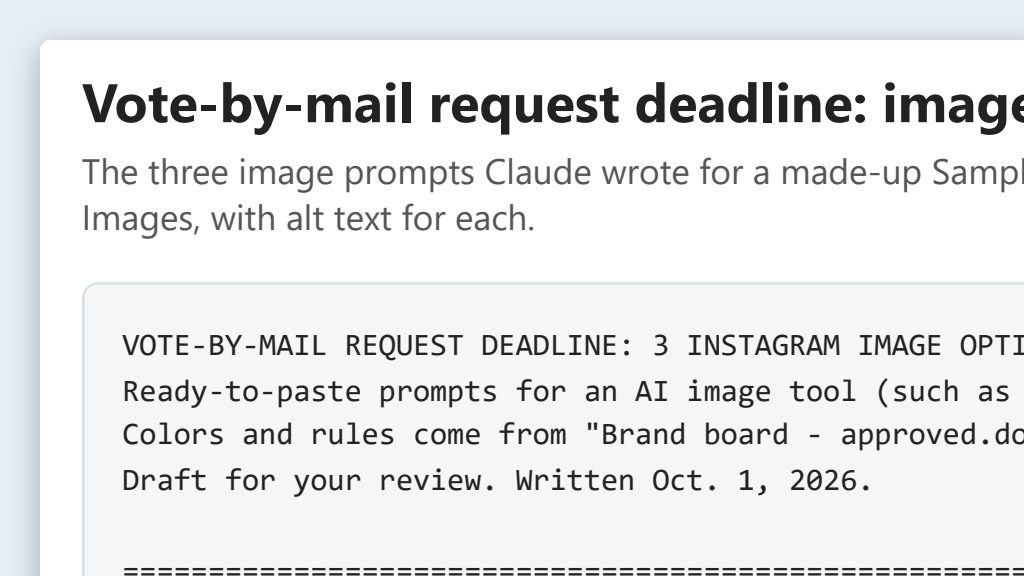
If you’re in the Claude desktop app: ask for an image prompt to take with you
 Example output
Say it or type it
Add an image prompt to any post
Now write an image prompt I can give Codex in the ChatGPT desktop app to make a matching picture for this post, sized for [Platform]. Ask for a flat illustration in our brand colors, with no words in it and the top third left empty for a headline. Spell out the limits in the prompt: no ballots, voting equipment, polling places, real or realistic people, seals, or logos.

Save the image prompt and alt text for the finished picture in this folder.
Fill in anything in [brackets] with your own details.
Then give the image prompt to Codex in the ChatGPT desktop app and save the picture in the same folder as the post.
Before any image goes out
- Add the words yourself. AI image tools still misspell words, so put the headline on in PowerPoint, Canva, or your scheduling tool.
- Look closely. Check for odd details, and anything that could be mistaken for a real ballot, voting equipment, or a real polling place.
- Alt text on every image, and label AI-made images however your office’s policy says.
- Keep the image and the prompt in the project folder with the post. They’re part of its record.
- Image prompts are green. Describe a scene. Never put voter names or other personal information in an image prompt.
The Examples Gallery shows this in practice: the poll worker recruitment kit and the candidate qualifying kit include an image prompt for every post, plus ready-made text graphics. For the full rules, see Image prompts that follow your brand board.
Review and approval workflow
Every post takes the same path: draft → fact check → Supervisor approval → schedule.
- Draft. Whoever writes the post (with or without AI) starts from a signed-off row in the verification table, never from memory.
- Fact check. A second person compares every date, time, place, link, and phone number with the verification table and the official source.
- Supervisor approval. Your Supervisor, or whoever they’ve named, approves the final wording in every language.
- Schedule. Only then does the post go into the scheduling tool. Keep a record of who approved it and when.
Approval checklist
- ☐ Every date and time matches the verification table
- ☐ Every location name and address matches the official published list
- ☐ Every link goes to the right page on the office’s website, and it works
- ☐ The post follows the brand board: tone, hashtags, colors, and sign-off
- ☐ It’s nonpartisan: no candidate, party, or issue positions, and no campaign hashtags
- ☐ It fits the platform’s character limit (checked in the platform’s composer, not by the AI)
- ☐ Every image has alt text, and any AI-made image is labeled according to office policy
- ☐ No realistic AI images of ballots, voting equipment, polling places, or real people, and no AI-made seals or logos
- ☐ No personal information about voters, poll workers, or staff, and photos of people only with permission
- ☐ Approved by
[NAME, TITLE]on[DATE]
Public records reminder
Keep your brand consistent across channels
Your website is where every post sends people, so it should look and sound like your social media. When they don’t match, voters notice, and it’s harder to tell your real accounts from fake ones.
- Website Management covers the other half: clean pages, accessibility checks, and election-cycle refreshes.
- Brand consistency cleanup uses the same brand board to bring your website in line.
Which tool to use
Either app works for writing the posts: Claude’s Code tab or Codex in the ChatGPT desktop app, working in your social media folder. For pictures, remember that Claude doesn’t make images and the ChatGPT desktop app does (see Graphics). The image prompt rules apply no matter which image tool you use. See Tools to compare them, and Will They Train on Our Data? before you pick a plan.