Every election runs on a few hundred tasks with hard deadlines, and most offices track them in some kind of project tool, even if that tool is a spreadsheet. This section is about carrying your election project plan forward from one cycle to the next without retyping every date.
Use cases in this section
 One possible outcomeYellow data classification· Think firstFlagship example
Election project templates: roll last cycle's plan forward with the right dates
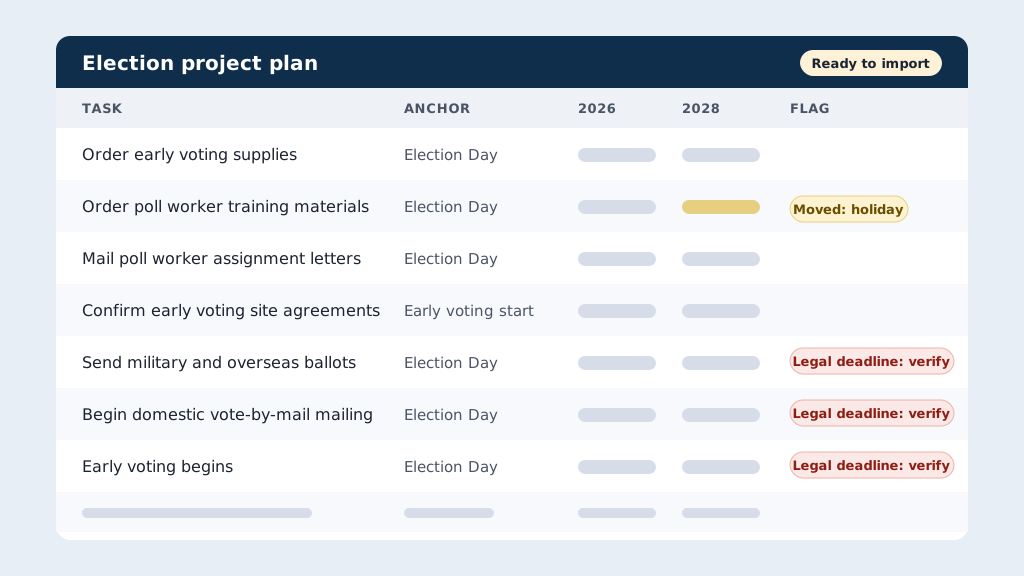
Put last election’s Asana export in a folder and have the AI rebuild it for the next election, with each due date worked out from its milestone.
- By hand
- 1–2 days
- With AI
- 2–3 hours
Which project tool fits your office
The best project tool is the one your staff will actually update. Start with what you already own, and move up only when it stops working.
- A 3-person office. A shared Excel workbook, or the basic Planner that comes with Microsoft 365, is usually enough. Add the anchor columns from the election project template example (Anchor, Offset, Flag), and you have a reusable plan at no extra cost. Note that the free tiers of Asana and monday.com stop at 2 users.
- A 10- to 20-person office. This is where a paid tool starts to earn its keep: owners on every task, due-date reminders, and a timeline view. Planner Plan 1, Asana Starter, monday.com Basic or Standard, and Smartsheet Pro all fit here.
- A 50-person office. You’ll want views across several projects at once (often called portfolios), admin controls, and single sign-on with your county accounts. Look at Asana Advanced, monday.com Pro, Smartsheet Business, or Planner and Project Plan 3, and ask IT what they can support.
The flagship example uses Asana because that’s the tool I used. The method (anchor every task to a milestone, then recalculate) works in any of them.
What they cost
List prices in U.S. dollars, per person, before tax.
| Tool | Free option | Entry paid plan | Higher plans | Source |
|---|---|---|---|---|
| Asana | Personal: free for up to 2 users | Starter: $10.99/user/month billed annually, or $13.49 billed monthly | Advanced: $24.99/user/month billed annually, or $30.49 monthly. Enterprise: contact sales. | asana.com/pricing |
| monday.com (work management) | Free: up to 2 seats and 3 boards | Basic: $9/seat/month billed annually | Standard: $14 list ($12 with a current special offer). Pro: $22 list ($19 with a current special offer). Per seat/month, billed annually, 10-seat pricing shown. Enterprise: contact sales. Monthly billing costs more. | monday.com/pricing |
| Microsoft Planner | Planner in Microsoft 365: included with Microsoft 365 plans | Planner Plan 1: $10.00/user/month, paid yearly | Planner and Project Plan 3: $30.00/user/month, paid yearly (adds portfolios, baselines, critical path, and Project desktop) | microsoft.com Planner pricing |
| Microsoft Project (desktop, one-time purchase) | None | Project Standard 2024: $679.99 one-time | Project Professional 2024: $1,129.99 one-time | microsoft.com Project pricing |
| Smartsheet | No free plan; 30-day free trial | Pro: $9/member/month billed yearly, or $12 monthly. 1 to 10 members; new customers only. | Business: $19/member/month billed yearly, or $24 monthly; 3 or more members. Enterprise and Advanced Work Management: custom pricing. | smartsheet.com/pricing |
| Excel | Excel for the web is free with a Microsoft account | Your office likely already has it through Microsoft 365. See vendor site. | See vendor site | microsoft.com Excel |
Checked October 2, 2026 on each vendor's own pricing page.
What that adds up to in a year (list price, billed annually, before tax):
| Plan | 3 people | 50 people |
|---|---|---|
| Excel or basic Planner you already license | $0 extra | $0 extra |
| Planner Plan 1 | $360 | $6,000 |
| Asana Starter | $395.64 | $6,594 |
| monday.com Basic (check seat minimums) | $324 | $5,400 |
| Smartsheet Pro | $324 | Not offered (10-member limit) |
| Smartsheet Business | $684 | $11,400 |
Not everyone always needs a paid seat. Smartsheet plans include unlimited “Contributors” alongside paid members. In Planner, people with only the basic Planner in Microsoft 365 can still edit tasks (assign them, change dates, add attachments) in premium plans a licensed user created, but the extra views and premium features need a paid license. Check exactly what an unpaid user can do before you count seats.
Getting your data in and out
A CSV file (comma-separated values) is a plain-text spreadsheet that almost every tool can read. Excel opens it. It’s the common language that makes moving a project plan between tools, or through an AI tool, possible.
| Tool | Import | Export | Good to know |
|---|---|---|---|
| Asana | CSV, on every plan | CSV or JSON (from the project’s drop-down menu: Export/Print) | The importer only adds tasks; it never updates existing ones. Headers in title case; due dates as month/day/year. Asana’s guide |
| monday.com | Excel (.xlsx, .xls) or CSV, into a new board or an existing one | Excel (“Export board to Excel”) | Importing into an existing board can add, skip, or update matching items. For new boards, dates must be in year-month-day format. Import guide · Export guide |
| Microsoft Planner | No built-in import documented | Excel (“Export as Excel” from the plan’s … menu) | The export includes task titles, buckets, status, start and due dates, assignments, priority, and labels. Microsoft’s guide |
| Smartsheet | Excel (including CSV) or Google Sheets | Excel, Google Sheets, PDF, Microsoft Project XML (Gantt only), PNG image | Importing into an existing sheet overwrites what’s there. CSV isn’t a listed export format; export to Excel and save as CSV. Import guide · Export guide |
| Excel | Opens CSV | Saves as CSV | Works with every tool above, and with AI tools. |
Carry a plan forward in a folder
I exported an Asana project from a past election to CSV and had Claude Code rebuild it for the next election with the right due dates. The same idea works with any tool on this page:
- Export last cycle’s plan as a CSV and save it in a project folder, such as
2028 Election Plan. - Open that folder in the Claude desktop app (Code tab, then Local and Open folder… under the message box) or the ChatGPT desktop app (open Codex, then Add new project or Ctrl+O, and pick the folder).
- Say what you want: “Use the CSV in this folder to build the plan for the next election on [Election date]. Move every due date so it lands the same number of days before the election as it did last time, and save a new CSV I can import.”
- Check the new dates, then import the file.
Folder projects covers the setup, and the flagship example has the full walkthrough.
Project plans usually list staff names and internal tasks, which makes them yellow: use a business-tier AI plan your office has approved, or take the names out first. The AI can read every file in the folder, so keep anything red out of it.
Tools that connect directly to AI
Some project tools now connect straight to Claude or ChatGPT. A connector lets the AI read from, and sometimes change, another app using your account. Many of these use MCP (Model Context Protocol), an open standard for connecting AI tools to other apps.
- Asana has an official connector in Claude’s directory, made by Asana, and an Asana app in ChatGPT. (Asana for Claude)
- monday.com is in Claude’s connector directory for Pro, Max, Team, and Enterprise plans. On Team and Enterprise, an owner turns it on first. It also connects to ChatGPT. (monday.com’s guide)
- Smartsheet’s Claude connector needs a Smartsheet Business or Enterprise plan, and both your Claude owner and your Smartsheet system admin must turn it on. (Smartsheet’s guide)
- Microsoft Planner has no Claude connector that we found. ChatGPT’s Microsoft Teams app can read, create, update, or delete Planner tasks. (OpenAI’s guide)
Getting staff to actually use it
A project tool only works if people update it. These habits matter more than which tool you pick.
- Name tasks so anyone can understand them. Start with a verb and say what’s done: “Order early voting signs,” not “Signs.”
- Put one owner on every task. A person, not a team. If everyone owns it, no one does.
- Give every task a due date, anchored to a milestone, so the dates carry forward next cycle.
- Hold a short weekly review. Same day, same time. Look at what’s overdue and what’s due in the next two weeks. Update the plan in the meeting, not afterward.
- Start small. One election, one or two departments. Add more once the habit sticks.
- Keep one plan. If someone keeps a private spreadsheet on the side, the shared plan stops being trusted. Fold theirs in.
- Keep a master template for each election type. After each election, fix the master, not just this year’s copy. See the flagship example.
- Make it the answer in meetings. When someone asks “where are we on this?”, open the plan.