The problem
An election cycle has dozens of dates voters need: the registration deadline, vote-by-mail request and mailing dates, early voting days, hours, and locations, Election Day, poll worker recruitment pushes, and results. They come from different places (the Division of Elections calendar, your website, your early voting site list, the Supervisor’s decisions). One wrong date in a post can send voters to a closed site or past a deadline. Building the calendar is tedious, checking it is critical, and most offices do both by hand, under pressure, a few weeks out.
The prompts
Start in a folder
…\AI Projects\Election Content Calendar\
Make the folder
On your C: drive, OneDrive, or an external drive. Your choice.
Open it in the app
Claude: Code tab → under the message box, choose Local → Open folder… ChatGPT: open Codex, click Add new project (or press Ctrl+O), then pick the folder. To add more folders later, open the project menu, choose Edit project, then Add folder.
Say what you want
Use the prompt below. Then open what it saved in the folder.
Say them out loud or type them. Change the words to fit your office. The AI goes and gets the public documents itself and saves what it makes in the folder.
Prompt 1 · Say it or type it
Build the verification table
We're planning social media posts for the [Election]. Go to the Florida Division of Elections website and download the current Election Dates and Activities Calendar; it's on the Division's Publications page. Then save our registration, vote-by-mail, early voting, poll worker, and results pages from the [Your county] County Supervisor of Elections website into this folder, along with our canvassing board schedule and poll worker training schedule.

Build an Excel verification table of every date, time, and location voters or poll workers need, with the source and the exact words from it on each row. Copy dates and times exactly as the source writes them, and add a column with the real date so we can sort. Flag anywhere two sources disagree. Leave two blank columns, Verified by and Date verified, for us to fill in.
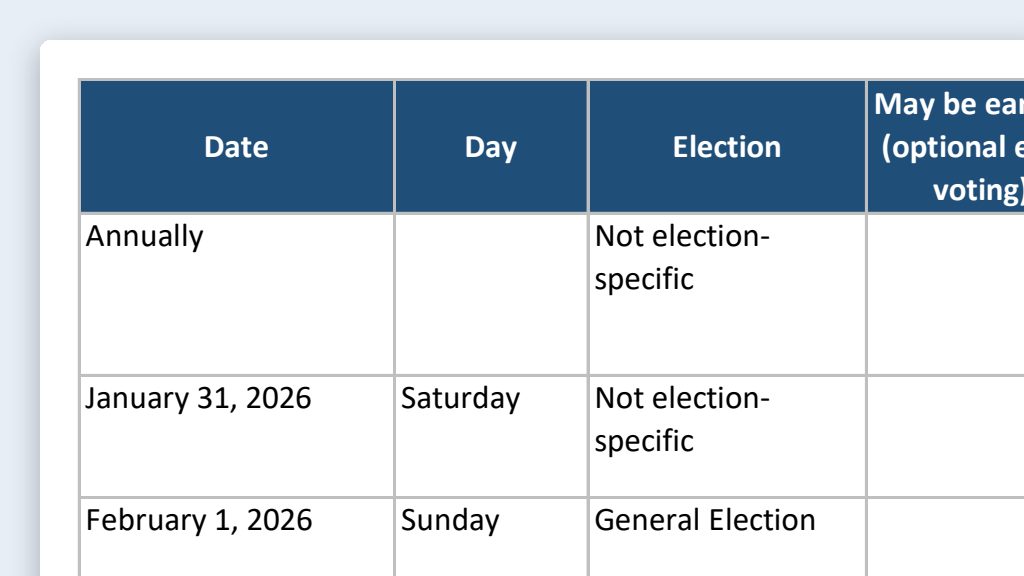
The document it will get: 2026 Election Dates and Activities Calendar, PDF from the Florida Division of Elections
Fill in anything in [brackets] with your own details.
Speak it or type it. If your early voting site list, poll worker training schedule, or results-night plan isn’t on your website yet, put a copy in the folder and say so.
Prompt 2 · Say it or type it
Build the posting calendar
The verification table is signed off. Add a posting calendar on a new tab, from today through the vote-by-mail cure deadline after Election Day: a heads-up two weeks before each deadline, a reminder the day before, a post each early voting day with that day's hours, and posts on Election Day morning and results night. If a heads-up date has already passed, mark it so we can decide whether to post today. Every post should name the table row it depends on.
Change the timing to match how your office posts.
Prompt 3 · Say it or type it
Put it in Outlook
Also save the posting calendar as an .ics file I can import into Outlook, with each post as an all-day event and its platforms and table row in the notes.
In classic Outlook: File, Open & Export, Import/Export, then “Import an iCalendar (.ics) or vCalendar file.” Choose Open as New to keep it as its own calendar. In Outlook on the web: Calendar, Add calendar, Upload from file. An import is a snapshot: if a date changes, fix the table, delete the old calendar, and import a fresh file.
What you need
- The Claude desktop app (Code tab) or the ChatGPT desktop app (Codex) and a folder called something like
Election Content Calendar. Start a fresh folder each cycle, so last cycle’s files don’t get mixed in. - Nothing to download yourself. The AI gets the state calendar from the Division of Elections (its Election Dates page is a good place to double-check) and your pages from your website. Put anything that isn’t online yet, like the Supervisor’s early voting site list, the poll worker training schedule, or a results-night plan, in the folder. Many offices don’t post training dates publicly, so ask your poll worker coordinator.
- Your website’s calendar, if the AI can’t see it. A “Dates to Remember” calendar on your site is often the cleanest list of dates, but many load after the page opens, so the AI may see an empty page. If that happens, print the calendar to PDF and save it in the folder.
- A second person to check and sign off. Ideally, someone other than the person who built the table.
Step by step
- Make the folder and open it in the app. Claude: Code tab, then under the message box choose Local and Open folder…. ChatGPT: open Codex, click Add new project (or press Ctrl+O), and pick the folder. (Full walkthrough: Folder projects.)
- Say the first prompt. It downloads the sources into the folder and builds the verification table in Excel.
- Settle every flagged or blank row. Ask the person who owns that fact (for example, your early voting coordinator), then tell the AI the answer. Watch the state calendar dates that count from the start of early voting: if your county adds optional early voting days, check those rows against your own public notices.
- Verify each row by hand. Open the source file in the folder, find the exact words, and check the date, time, and location. Then fill in “Verified by” and “Date verified.”
- Get sign-off. Your supervisor reviews the finished table before any posts are scheduled.
- Say the posting-calendar prompt, then read every post on it next to the table row it names. You know this election, so a wrong day, time, or site will stand out. Tell the AI what to fix.
- Put it in Outlook with the third prompt, so the social media team gets a reminder for each post.
- Draft the posts with Platform-specific posts, then send each one through the approval checklist before you schedule it.
One possible outcome
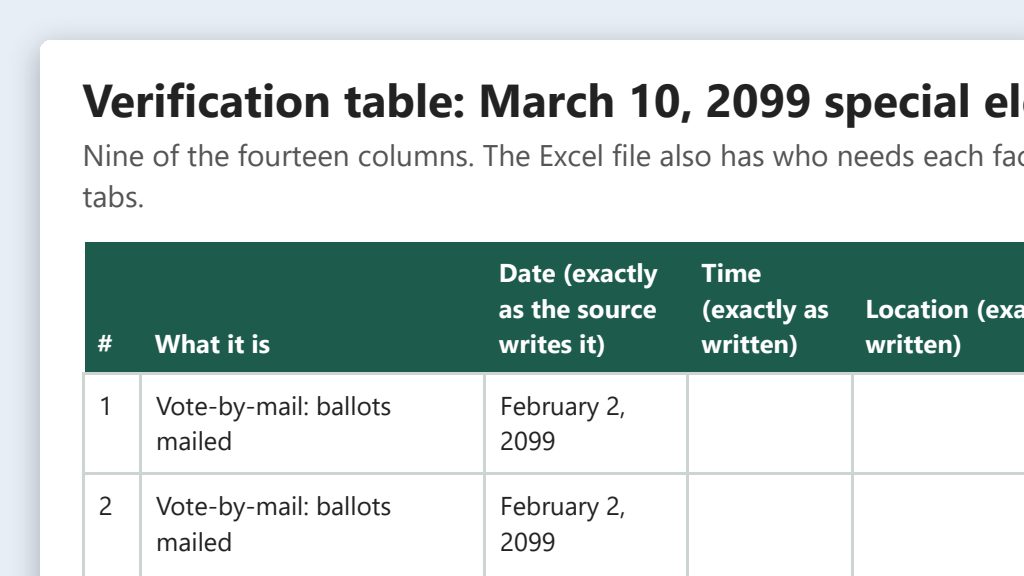
One run of the first prompt, on a stand-in website for a made-up Sample County and its March 10, 2099 special election.
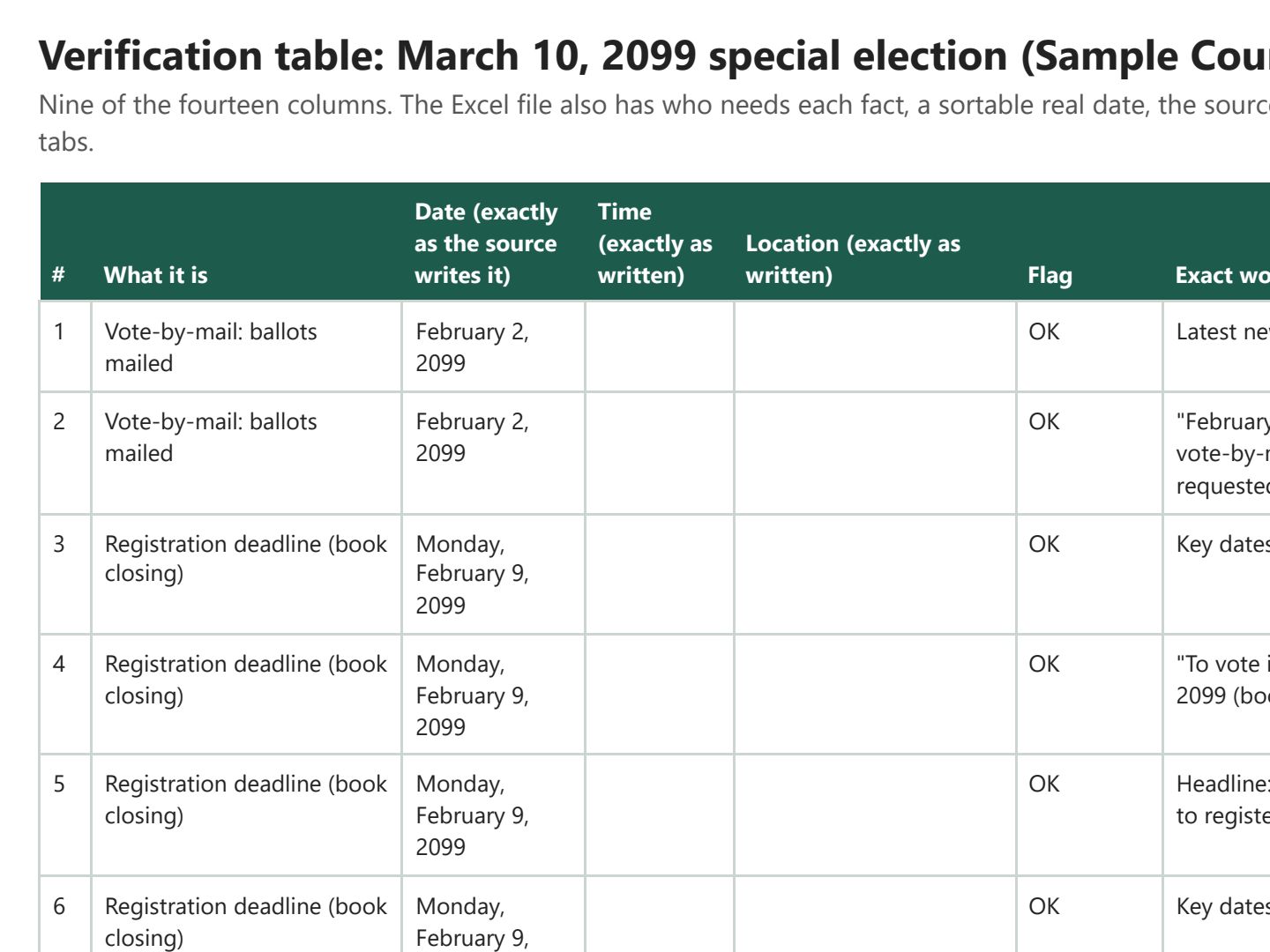 (opens the full version, PDF, 4 pages, 196 KB)
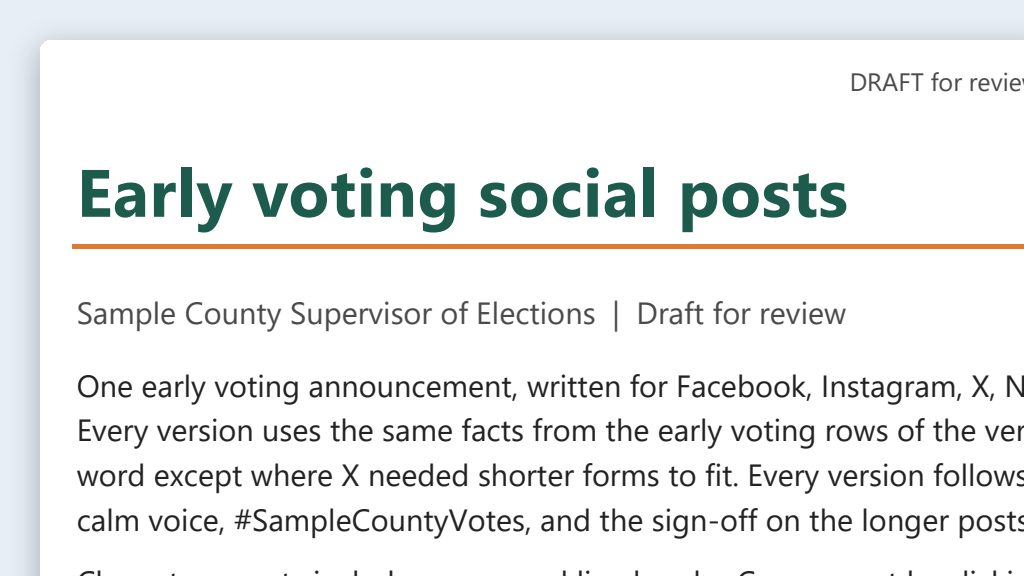
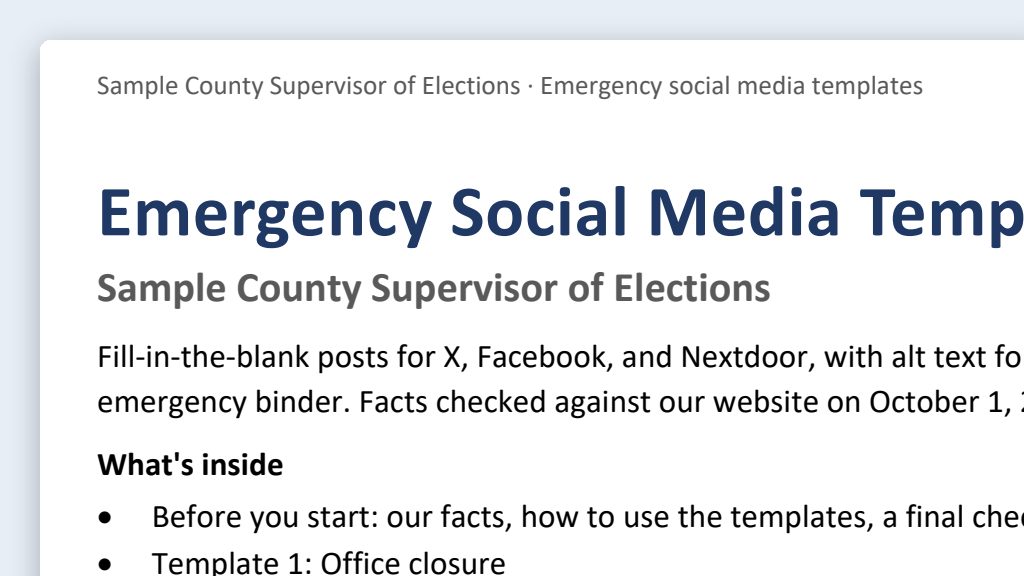
Word, Excel, and PowerPoint files download to your phone; the PDF opens first. File names end in -DRAFT because AI output is a draft until a person checks it. Web addresses shown in these samples are made-up and will not open.
Make it yours
- Small office? A shorter table is fine: the registration deadline, the vote-by-mail request deadline, early voting, Election Day, and results cover most posts.
- Already building the office’s internal election calendar? Election calendar builder covers that. Use the same verified dates for both.
Time: by hand vs. with AI
By hand
1–2 days
AI’s part, measured
About 35 minutes
in a test run of these prompts
With AI
3–4 hours
your time, including review
About the measured time: “AI’s part” is how long the AI took, start to finish, in a test run of these prompts on September 27, 2026. It works on its own while you do something else. “By hand” and “With AI” are estimates of your own time.
Estimate: the AI gathers the sources and builds the table and calendar in about 15 to 35 minutes. Most of the 3–4 hours is a person checking every row of the verification table against its source. That’s the point. Plan on a short re-check whenever a date changes.
Checking the work: what an expert looks for
You know this work, so you’re the best person to check it. Open every file it made and read every page. If part of it is outside what you know, hand that part to someone who knows it. These are the spots that most often need a fix:
- Never schedule a post from a row that hasn’t been signed off. A person fills in the Verified by and Date verified columns, never the AI. Keep the signed-off table with the campaign’s records.
- Dates change. Early voting sites and hours can change after a storm or an official order. When something changes, update the verification table first, then every post that cites that row.
- Watch the times, not just the dates. Some deadlines have a time attached, and AI tools often drop it. Florida also has two time zones, so offices in the Central time zone should make sure posts don’t borrow Eastern times from statewide materials.
- Don’t mix up elections. Primary, general, special, and municipal elections each have their own calendar. Check that every row matches the election you named.
- AI tools misread tables in PDFs. Check each row against the source page itself, and make sure early voting sites match your official list exactly: site name, address, and hours for each day.
Last reviewed October 2, 2026.