Nothing on this page is required. If folder projects in Claude’s Code tab or ChatGPT’s Codex are working for you, keep doing that. This page is for when you use AI often enough to hit limits, when long sessions start going sideways, or when someone in your office asks about CLAUDE.md files, skills, “agents,” or connecting AI to email. An agent is AI that takes steps on its own. A scheduled agent does that on a timer, like every Monday morning. Scheduled tasks and agents, below, covers both. The glossary has the short version.
A reminder on names: Claude Code is Anthropic’s tool for multi-step work that reads and writes files in a folder on your computer. In the Claude desktop app, it’s the Code tab. Everything below that says “Claude Code” means that tab.
Tokens: how AI measures text
A token is a chunk of text, often part of a word. AI tools read and write in tokens, not words or pages. For Claude, Anthropic says a token is about 3.5 English characters on average. Other tools count a little differently, but the idea is the same.
A rough way to estimate: count the characters and divide by 3.5. A 7,000-character memo is about 2,000 tokens.
Everything in a conversation counts:
- What you type
- Files the AI reads, whether you attached them to a chat or it opened them in your project folder (a long PDF can be most of the total)
- The AI’s replies
- Instructions that load behind the scenes, like project instructions, CLAUDE.md files, and skills (all explained below)
One thing surprises people: each time you send a message, the AI works through the whole conversation so far, not just your newest message. So a long chat or session costs more with every turn.
Why usage limits exist
Running these models takes a lot of computing power, so every vendor caps how much each person can use. For Claude, according to Anthropic:
- Limits reset on a rolling five-hour window, and paid plans also have weekly limits.
- Everything shares one pool. Chats in the desktop app, Code tab sessions, the phone app, and Claude on the web all count against the same limit. A long Code tab session in the morning leaves less for chat that afternoon.
- What uses it up faster: long and complex conversations, some features and models more than others, and higher effort settings.
- Paid plans can turn on usage credits to keep working after you hit a limit, billed extra. Check with whoever pays the bill before you turn that on.
ChatGPT and Copilot have their own limits, and all of them change often. See Pricing & Plans for current plan details.
Anthropic’s own tips for making your usage go further include keeping instructions short, removing files you’re no longer using, turning off tools and extended thinking when you don’t need them, and lowering the effort setting for simple jobs.
Context windows: the AI’s working memory
The context window is how much text the AI can hold in mind at once for one conversation or session: your messages, its replies, any files it has read, and the instructions that load behind the scenes. Anthropic calls it “Claude’s working memory.” When a conversation fills it, the tool has to drop or summarize something to keep going.
Today’s windows are large. On paid Claude plans, the newest models have a context window of up to 1 million tokens, and other models have 500,000 or 200,000.
Big isn’t the same as perfect. A bigger window lets the AI read more at once, but in practice a focused session with only the documents you need still gets better results than one huge session with everything in it.
Why long chats get worse or forget things
You’ve probably seen the symptoms. The AI forgets an instruction from the start (“I said no bullet points”). It mixes up details from two different tasks. It repeats a mistake you already corrected. Or it slows down and you hit your limit.
Here’s why that happens:
- Summaries drop details. When a chat or session gets very long, tools summarize older messages to make room. Claude does this automatically in long chats when code execution is on, and the Code tab does it too. Anthropic’s Claude Code documentation warns that detailed instructions from early in a conversation may be lost.
- Mixed tasks blur together. If one session covers poll worker training, a press release, and a canvassing board notice, the AI has all three in mind while it answers any one of them.
- Old mistakes stay in view. A wrong answer you corrected is still part of the conversation, and it can creep back in.
- Every turn costs more. The AI rereads the whole conversation each time, so a long chat eats into your usage faster.
How to manage it
- Start fresh for each task. One task, one session. In the Code tab, click + New (or press Ctrl+N) and pick the same project folder. This one habit prevents most of the problems above.
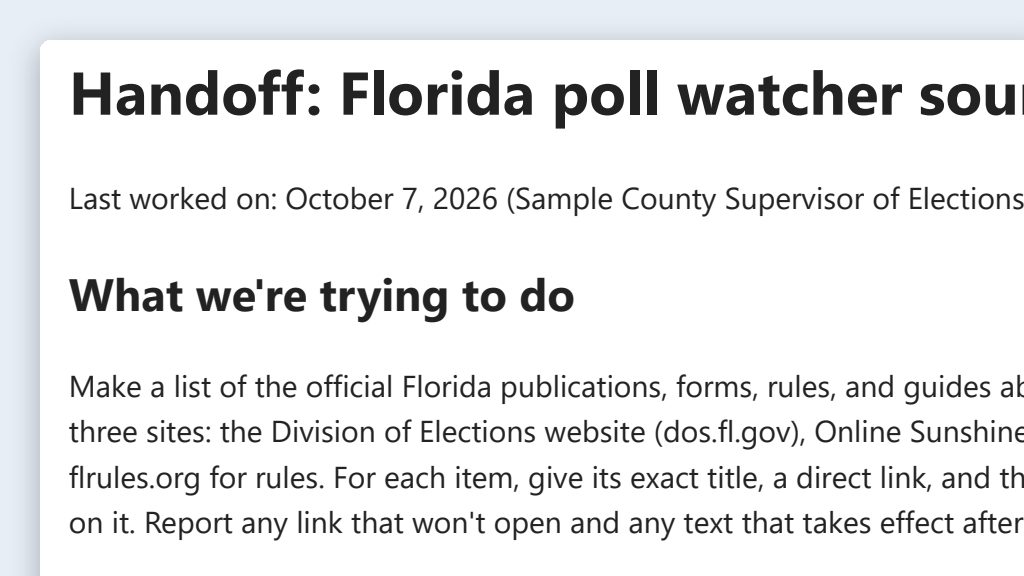
- Hand off through the folder. When a session gets long but the work isn’t done, ask for a handoff note saved in the project folder (prompt below). Read it and fix anything wrong. Then start a new session in the same folder and say, “Read the handoff note and pick up where we left off.”
- Keep reference documents in the project folder. Put the current Polling Place Procedures Manual (PDF) or your style guide in the folder once, or have the AI download it, and every session in that folder can use it. You don’t attach it again each time. The data rules still apply: green files in any folder, yellow only with an approved business-tier account (see the Safe Use Framework).
- Remove what you’re not using. Move old files out of the folder, and turn off tools you don’t need for this task.
- In the Code tab, let it compact, and check what’s loaded. When a Claude Code session gets close to the limit, it automatically clears old output and then summarizes the conversation. This is called compaction. You can also:
- Type
/compactto summarize on purpose. You can say what to keep, like/compact keep the list of files we changed and the open questions. - Type
/contextto see what’s using up space. - Start a new session for a new task. Each session starts with a fresh context.
- Put rules that must survive a long session in CLAUDE.md (next section), not in your first message.
- Type
 Example output
Say it or type it
Handoff note for a new session
We'll finish this in a new session. Write a short handoff note and save it in this folder as HANDOFF.md. Say what we're trying to do, what we've decided, what's done and what's left, which files we're working from, and any open questions.
CLAUDE.md: standing rules for a Claude Code project
CLAUDE.md is a plain text file that sits in a project folder. Claude Code reads it at the start of every session in that folder, so it’s where you put the rules you’d otherwise have to repeat every time. You can also keep a personal one that applies to all your projects, and IT can set one for a whole organization. Typing /init in the Code tab writes a starter file for you. Or just ask: “Write a short CLAUDE.md for this folder with the rules we’ve been using.” There’s also a ready-made one, with a notes log and a safe use card, in the starter folder download (generic and made up).
I keep my Claude Code work in one main folder, “Claude Code Access,” with a subfolder for each project, and each project has its own CLAUDE.md.
What belongs in it: the things Claude can’t figure out by reading your files.
- Data rules. Public data only in this folder, and what must never be added.
- Folder conventions. Where downloaded sources go, where finished work goes, and how to name files.
- Office standards. Reading level, voice, the terms your office uses in public (“Supervisor of Elections office,” not “SOE”).
- When to stop and ask. For example, before deleting or overwriting anything.
Here’s what a short, useful one can look like:
# Poll worker materials

## Data
- Public documents only. Never add voter lists, poll worker applications,
  or anything with personal information.
- Files from a system (exports, rosters, CSV or Excel) are allowed only
  after every column with personal information has been deleted.
- Save downloaded sources in the sources folder, and don't change them.

## Output
- Save finished files in the output folder, with the date first,
  like 2026-10-05-training-deck.pptx.
- Plain language, 8th-grade reading level.
- Say "Supervisor of Elections office," not "SOE."
- End every deck or document with a list of sources, with links.
- If you can't find a fact, tell me. Don't guess.

## Before you act
- Ask before deleting or overwriting any file.
About the “delete your CLAUDE.md” advice
You may have seen advice going around to delete your CLAUDE.md files. The argument goes like this: newer models are good at reading a folder and figuring out a project on their own, and a long, out-of-date instruction file wastes space and can steer the AI wrong.
Part of that is true. Anthropic’s own guidance is to “target under 200 lines per CLAUDE.md file,” because longer files use more context and Claude follows them less reliably. A file full of things Claude would do anyway, or rules that stopped being true two elections ago, does more harm than good.
But deleting it outright throws away the part that matters most in an election office: the rules the model can’t work out for itself. No amount of reading your files tells Claude that a folder must never hold voter data, or how your Supervisor wants the office named in public.
A balanced approach:
- Keep it short. Well under 200 lines. Most projects need about a screenful.
- Keep it current. If a rule isn’t true anymore, delete it today.
- Keep only what Claude can’t figure out. If Claude already does something right without being told, delete that line.
- Prune it regularly. The end of each election cycle is a natural time to read it top to bottom.
Skills: reusable instructions for repeat jobs
A skill is a saved set of instructions for one kind of job. It’s a folder with a file named SKILL.md inside: a short header with a name and a description, then plain-language instructions. The folder can also hold templates, examples, or scripts the job needs.
A skill gets used in one of two ways:
- Automatically. Claude reads each skill’s description and uses the skill when your request matches it.
- On demand. You type a slash and the skill’s name, like
/social-post.
On this site, skills live in the Code tab: in your personal skills folder or in a project’s .claude/skills folder. ChatGPT’s plugins (its new name for connectors) can also bundle skills.
The easiest way to make one: finish a job you’ll repeat, then say, “Turn what we just did into a skill for this project, so next time I can just type its name.” Read what it writes, and trim anything you don’t need.
CLAUDE.md or a skill?
| Question | CLAUDE.md | Skill |
|---|---|---|
| When it loads | At the start of every session in that project | When a task matches its description, or when you type /skill-name |
| Best for | Standing rules: data rules, folder conventions, office standards | A repeatable job with steps: a deck, a formatted letter, a post |
| Keep it | Short. Anthropic suggests under 200 lines. | Focused on one job |
| Example | “Public data only in this folder.” | “How we write a social media post.” |
A rule of thumb: if it applies to everything in the project, it goes in CLAUDE.md. If it’s a procedure you’d put on a checklist for one task, make it a skill.
Example: a brand-compliant social post skill
Save this as .claude/skills/social-post/SKILL.md in a project folder. Swap in your own office’s rules.
---
name: social-post
description: Drafts social media posts for the Sample County Supervisor of Elections office in our approved voice and format. Use when asked to write or revise a Facebook, Instagram, X, or Nextdoor post, or any post about registration, vote-by-mail, early voting, Election Day, or poll worker recruitment.
---

# Social media post (Sample County Supervisor of Elections)

Write posts from the source I point you to: a press release, a page on
our website, or an official notice. If I give you a link, go get it. If
a date, time, place, or link isn't in the source, ask me. Don't guess.

## Voice
- Plain language, 8th-grade reading level.
- Friendly, calm, and strictly nonpartisan.
- Say "Supervisor of Elections office" on first mention, not "SOE."
- Write times like "10 a.m.," not "10:00 AM."

## Format
- Facebook and Nextdoor: 2 to 4 short sentences, then the link.
- Instagram: the same text, with "Link in bio" instead of the link.
- X: one short post, including the link.
- At most one hashtag: #SampleCountyVotes
- Suggest one image idea and write alt text for it.

## Our standing rules
- No candidates, parties, or ballot measures, except official wording
  exactly as I give it.
- Don't draw or change our logo or seal.
- No personal information about voters, poll workers, or staff.

## What I want back
Save the posts in this folder as one document: the post for each
platform I asked for, the alt text, and a short list of every date,
time, place, and link in the posts with where each one came from.
Notice what this skill does and doesn’t do. It holds the rules your communications staff already know, so nobody has to retype them. It doesn’t replace the person who checks the post against the source and clicks Post. To write your own rules, start with the brand board use case. More ideas are in Social Media Workflows.
Two more skills worth building
Poll worker deck builder. I built poll worker recruitment and training decks from the public poll worker manual, and a skill turns that into a repeatable recipe. Its instructions say where to get the source (download the current Polling Place Procedures Manual from the Division of Elections, or use your county’s handbook), plus your slide count, font sizes, and template. They tell Claude to put speaker notes in the notes section, take local details like pay rates, report times, and training dates from your office’s website, and end each deck with a references slide. Keep your template file in the skill’s folder so every deck matches. The poll worker recruitment deck use case has prompts to start from.
Asana election rollover. I exported the Asana project from a past election to a CSV file (a plain spreadsheet file) and had Claude Code rebuild it for the next election with correct due dates. As a skill, you drop the export in the project folder and say the new Election Day date. Clean the export first: a project export can hold staff names or emails, so delete every column that holds personal information, and put only the cleaned file in the folder. It moves each task to the same number of days before or after Election Day, flags any new due date that lands on a weekend or county holiday, and flags every task tied to a deadline in law so a person checks it against the official calendar. Then it writes a new CSV ready for Asana’s importer. (Asana’s importer only adds tasks; it won’t update existing ones, so import into a new project.) Mark this one disable-model-invocation: true so it runs only when you ask. The election project template rollover use case walks through the whole job.
Scheduled tasks and agents
An agent is an AI that works through several steps on its own (searching, reading pages, writing files) instead of answering one message and waiting for the next. A scheduled task is an agent job set to run automatically, like every Monday morning or the first of every month.
Your options as of September 2026:
- Claude desktop scheduled tasks run on your own computer, and only while the Claude app is open and the computer is awake. Each task has its own permission mode, so you can require it to ask before it acts.
- Claude Code cloud scheduled tasks (Anthropic called these routines until late October 2026; some accounts still show that name) run in Anthropic’s cloud, even when your computer is off. They’re a research preview (an early version that can change or go away). A schedule can run them at most once an hour. They run without asking permission for each step, and there’s a daily cap on runs. Available on Pro, Max, Ultra, Team, and Enterprise plans. (Anthropic)
- Other tools. The ChatGPT desktop app can run scheduled tasks that use a local project folder, while your computer is on and the app is running.
Two election-office examples
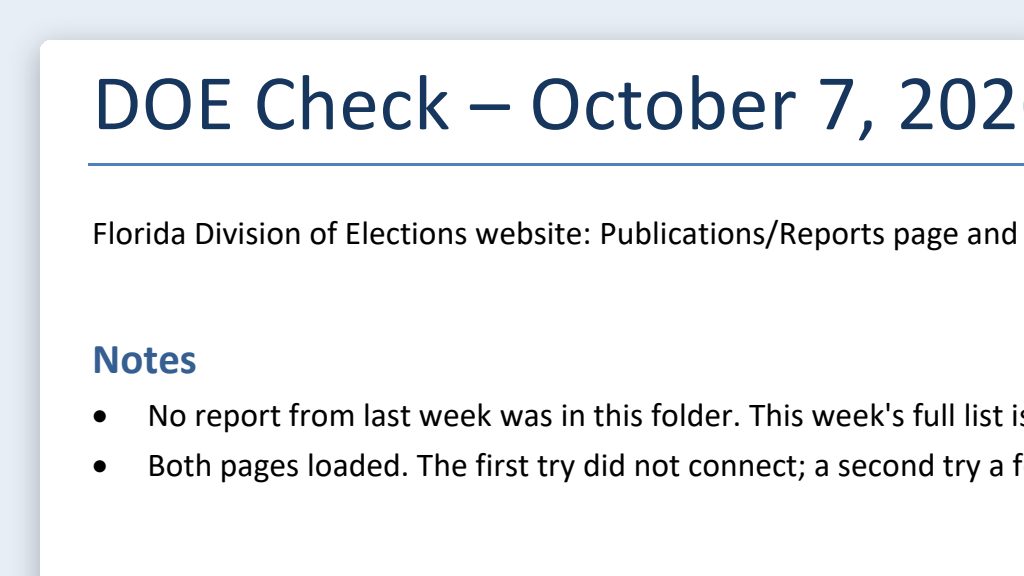
A weekly check of the Division of Elections site. Every Monday morning, an agent looks at the Division of Elections pages your office watches (for example, the Publications page and the Forms page) and saves a short report in a project folder listing anything new or changed since last week: title, date, and link. It reads public pages and writes a report. It doesn’t interpret anything. A person reads the report and opens the links.
 Example output
Say it or type it
Weekly Division of Elections check
Go to the Florida Division of Elections website and check the Publications page and the Forms page. Compare them with last week's report in this folder, and list anything new or changed: the title, the date shown on the page, and a link. Changed means a new title, a new date, or a new file link for the same item.

Save the list here as a new report named DOE-check with today's date, with the full list of items at the end for next week's comparison. Just list what's new. Don't tell me what it means. If a page won't load or looks different than usual, say so at the top. If there's no report from last week, save this week's full list as the starting point and say so at the top.
Comparing links matters: a state form can get a new file while the date shown on the page stays the same. Once the first report looks right, take the next step in the same session: “Turn what we just did into a skill for this project, so next time I can just type its name.” (See Skills above.)
A monthly statute-change summary. Florida’s election laws are mostly in Chapters 97 through 106 of the Florida Statutes, which s. 97.011, F.S. names the Florida Election Code. Once a month, and more often during the legislative session, an agent could check the Legislature’s official websites for bills that passed and change those chapters, and list each one with its effective date and a link to the official text. Treat the result as a reading list for your leadership and your office’s attorney, not a legal summary. AI tools do get bill numbers, section numbers, and effective dates wrong, so a person checks every item against the official source. One more catch: Online Sunshine, the Legislature’s official statutes site, sometimes shows new wording before it takes effect, with no note on the page. Have the agent take each effective date from the law as passed, not from the statute page.
The trade-offs
| Risk | What it looks like | What to do |
|---|---|---|
| No one is watching | Cloud scheduled tasks run without permission prompts. A task that can send, post, or delete can do it at 3 a.m. with nobody there. | Keep scheduled tasks read-only: read public pages, write a report. No sending, posting, or deleting. |
| Hidden instructions | Prompt injection is text in a web page, email, or file that tries to give the AI new orders. OpenAI tells users to “treat all web results as untrusted input.” | Point agents only at official sites. Give the task a cautious permission mode, so the most it can do is read pages and save its report in its own folder. |
| False comfort | A report nobody reads, or a change everyone assumed the agent would catch. | Name one person who reads each report. Keep your normal ways of tracking deadlines. |
| Usage | Scheduled runs draw from the same usage pool as your chats. | Start weekly, not hourly. |
| Things change | Cloud scheduled tasks are a research preview. | Don’t make a legally required process depend on one. |
| Records | The reports are office records. | Save them where your office keeps records, as your records management liaison officer (RMLO) directs. |
Connectors and email
A connector lets an AI tool reach into another app: read your SharePoint files, search your Outlook mailbox, or add tasks in Asana. Anthropic’s description is that connectors “let Claude access your apps and services, retrieve your data, and take actions.” ChatGPT now calls these plugins. Once connected, the AI usually gets the same access you have. Claude’s Microsoft 365 connector, for example, can reach Outlook, SharePoint, OneDrive, and Teams with the permissions your work account already has. It’s now on every Claude plan, Free included, and on individual plans it also accepts a personal Microsoft account (Outlook and OneDrive only), so it’s easy for anyone to turn on. (Anthropic)
Why many offices won’t let AI touch Outlook
It’s a reasonable call. Here are the real risks:
- Voter correspondence. An election office inbox is full of voters’ names, addresses, and phone numbers, and sometimes ID numbers people shouldn’t have sent. Some messages come from voters whose addresses are protected by law. A connector passes along whatever it reads, without anyone screening it first. That can turn a green task (“help me answer this question”) into a red data exposure.
- Public records. Office email is generally a public record, and AI chats about office business may be too (see AI conversations can be public records). An AI tool outside your email system creates copies (summaries, drafts, chat history) that your office may not be able to search, retain, or produce.
- The AI taking actions. Newer tools do more than read. Claude for Outlook (in beta) sorts your inbox and drafts replies that wait for you to send them. Microsoft Copilot Cowork can send emails, schedule meetings, and post in Teams after you approve each action. Approval steps help, but a busy person approving action after action can stop reading closely.
- Anyone can email you. If an AI reads an incoming email, text hidden inside it can try to steer the AI (prompt injection again). The more the AI is allowed to do, the more that matters.
- Broad access. Connectors and Copilot can show anything the user can already see. If SharePoint permissions are loose, AI makes overshared files easy to find. Microsoft tells organizations to tighten permissions before rolling Copilot out.
Safer ways to get help with email
- Give the AI only the public part. In a project folder, in the Code tab or Codex, type or say the question without the sender’s name, email address, street address, or anything personal. “A voter asks how to update their mailing address” is all the AI needs.
- Draft in the desktop app, then send it yourself. Get the reply drafted, check it, copy it into Outlook, and add the personal details yourself.
- Keep a human send step. Whatever tool you use, nothing leaves the office until a person reads it and clicks Send. Don’t turn on any feature that sends, replies, files, or deletes on its own.
If your office does approve a connector, ask IT to limit what it can do. Claude’s admin settings, for example, can restrict a connector to reading but not writing.
Where to go next
- Safe Use Framework: the green, yellow, red rules everything on this page depends on.
- Safe Setup: where AI runs and where your files live.
- Which Tool for Which Job: why this site uses the Code tab and Codex, and where Copilot fits.
- Folder Projects: how to set up a project folder and start a session on it.
- For Leadership: a sample office AI policy that covers connectors and agents.