New here? Do the first project on Getting Started first. This page will make more sense once you’ve tried it.
How to ask: three parts
A prompt is what you say or type to the AI. A few years ago, people wrote long prompts full of rules: “You are an expert… use only the attached document… don’t use other states… if something is missing, write NEED…” You don’t need that anymore. Today’s AI works more like a sharp new coworker. Tell it the job, and let it do the job.
Every good request has three parts:
- What to do. The job, and who it’s for. “Make two PowerPoint decks: a quick overview for people on the fence about being a poll worker, and a detailed one for people who signed up.”
- What to use. The public source, and where to get it. “Go to the Florida Division of Elections website and download the latest Polling Place Procedures Manual (PDF).” Or: “Use the spreadsheet in this folder.” And your own examples: “Our current deck is in this folder. Keep its look and our county’s slides.” Context is king: the more the AI sees of how your office already does things, the closer its first draft. See start from what you already have.
- What you want back. The actual files, and anything that matters about them. “Save both decks in this folder. Use our website’s colors, put our logo on the title slide, and make the last slide a list of references.”
That last line, asking for references, does the job all those old rules were trying to do. It keeps the AI working from real sources, and it shows you where to look when you check.
Too little, and just right
Here’s what most people type the first time:
Say it or type it
Too little
Write something about voter ID.
It doesn’t say what to make, who it’s for, which state, or where the facts should come from. You’ll get something generic, and you won’t know where any of it came from. Here’s the same request with all three parts:
Say it or type it
Just right
Go to the Florida Division of Elections website and download the current Florida Voter Registration and Voting Guide. Use it to write a short "What to bring when you vote" section for our website, for first-time voters. Save it in this folder as a Word document, with links to your sources at the bottom.
The document it will get: Florida Voter Registration and Voting Guide (2026), PDF from the Florida Division of Elections
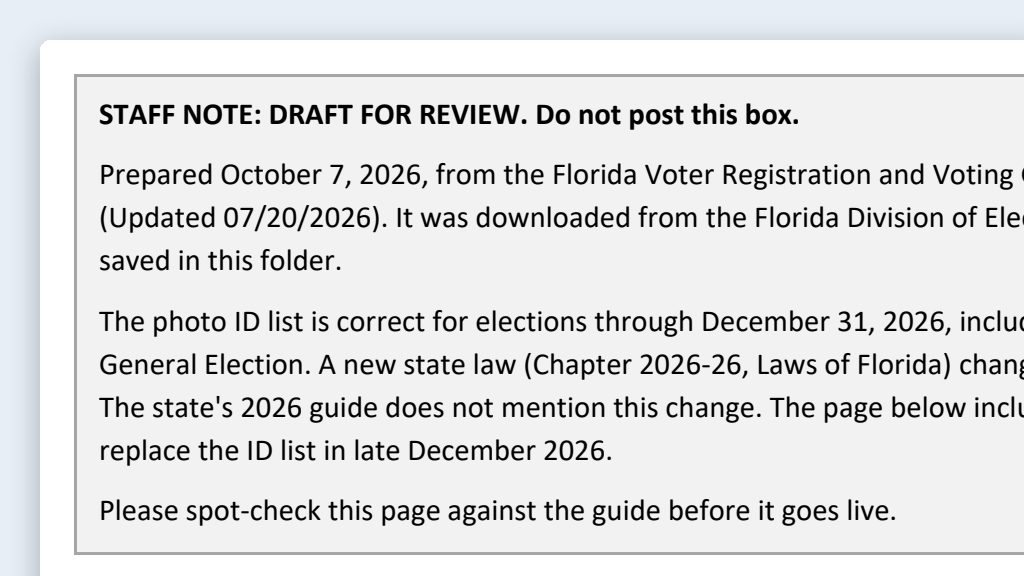 Example output
That’s it: what to do (a short website section for first-time voters), what to use (the state’s voter guide, which it goes and gets), and what you want back (a Word document in the folder, with sources). Notice what’s missing: no rules list, no word count, no “you are an expert.” Add detail only when it matters to you, like “keep it under a page.”
When the subject is law, one more line can help: “Tell me if any rule in it is about to change.” Online Sunshine can show a law’s new wording before it takes effect. In 2026, for example, it already showed the shorter photo ID list (s. 101.043(1)(a), F.S.) from chapter 2026-26, Laws of Florida (PDF), which takes effect January 1, 2027. The History line (the line at the bottom of each statute on Online Sunshine that names the laws that changed it; see the glossary) is where to look.
Where to say it
Every request on this site is meant for Claude’s Code tab or Codex in the ChatGPT desktop app, working in a project folder. That’s what lets the AI go get the manual, save it, and build files next to it. Getting Started shows you how to set that up, and Folder Projects goes further. Even a quick question about one file works that way: put the file in the folder and ask.
Speak your prompts, or type them
You don’t have to type your requests. Most people talk much faster than they type, and when you talk, you naturally include the details the AI needs: who it’s for, what went wrong last time, what your Supervisor asked for. That’s what turns “too little” into “just right.”
I speak most of my prompts with a dictation app (I use Wispr Flow). I talk through the job the way I’d explain it to a coworker, read over the text, fix anything it misheard, and send it. Nobody pays me to mention it, and there are other good options below, with new ones showing up all the time.
Typing still works fine. Some people like a mix: speak the job, then type the exact parts, like a statute number or a date.
Two different “voice” features
- Dictation (speech to text): you talk, your words appear in the message box, you read them, and then you send. That’s what this section is about. It works for any prompt, in any AI tool.
- Voice mode: a spoken back-and-forth where the AI talks back to you. Claude and ChatGPT both have one. It’s handy on your phone for thinking out loud, but it’s less useful for prompts you want to check before sending.
Ways to dictate
| Option | How to start | Cost | Where your audio goes |
|---|---|---|---|
| Windows voice typing | Click in any text box and press Windows key + H | Free, built into Windows 11 | Microsoft’s online speech service (needs an internet connection) |
| Mac Dictation | The microphone key, or Edit → Start Dictation | Free, built in | Processed on the Mac itself on many models (check Keyboard settings) |
| Your phone’s keyboard | Tap the microphone on the keyboard | Free, built in | Depends on your phone and its settings |
| ChatGPT’s dictation button | The microphone icon in the message box | Included | Sent to OpenAI to transcribe; the audio is kept with the chat until you delete it |
| Dictation apps like Wispr Flow | Install the app, then hold a key and talk in any program | Free tier; paid plans $12 to $18 per user per month when billed yearly (monthly billing costs a few dollars more) | Sent to the app’s service. Check its privacy settings and turn off model training. Business plans add admin controls. |
Sources: Windows voice typing, Mac Dictation, ChatGPT voice dictation FAQ, Claude voice mode, Wispr Flow pricing. Checked September 26, 2026.
Windows voice typing needs nothing installed, so it’s the easiest place to start on an office computer. A separate app like Wispr Flow works in every program at once, but installing software on a county computer usually needs your IT staff’s OK.
Tips that make dictation work
- Talk it through like you’re briefing a coworker. What to do, what to use, and what you want back. That’s all it needs.
- Read it before you send it. Dictation mishears names, numbers, and citations. “One-oh-one point six two” can come out several ways.
- Type the precise parts if you like. Statute numbers, dates, and addresses are sometimes easier to type.
- Use a headset mic in a busy office. It cuts down on errors and on what your neighbors hear.
Why AI can sound sure and still be wrong, and why you’re the fix
A hallucination is when an AI states something false as if it were true: a deadline that’s off by a week, a statute number that doesn’t exist, or a link to a page that was never there.
Here’s why it happens. Tools like Claude, ChatGPT, and Microsoft Copilot run on large language models (LLMs), the trained programs behind the chat (see model in the glossary). They learned from a huge amount of text, and they write by predicting which words should come next. That makes them very good at sounding right. It doesn’t make them a database of facts. When they don’t know something, they often fill the gap with something that sounds likely, in the same confident tone they use for everything else. Now add agents (AI that takes steps on its own) and connectors (AI that reaches into other apps): the AI does more work, faster, so there’s more for a mistake to hide in.
Election work is full of the details they get wrong most often:
- Dates and deadlines, which change every election cycle.
- Statute and rule numbers, especially subsections, and laws that have been changed or repealed.
- Figures: counts, fees, pay rates, and percentages.
- Other states’ rules. Florida’s rules differ from other states’, and these tools learned from all of them.
- Old versions of manuals, handbooks, and forms.
- Laws passed this year that aren’t in effect yet. Online Sunshine may already show the new wording under this year’s heading. Read the History line at the bottom of the statute to see which law made the change, then check when that law takes effect.
You’re the expert. That’s the check.
Having the AI download the official source into your folder and list its references helps. But the real protection isn’t in the prompt, and it isn’t asking the AI to check its own work. It’s you.
If you could do the job yourself, the old way, you’re the best person there is to judge what the AI made. You’ve read the poll worker manual a dozen times. You know when early voting starts and which forms a candidate turns in. So when you read what the AI made, the wrong things jump out at you, the same way they would in a new coworker’s first draft.
That makes checking plain common sense:
- Read every page. If it made a 20-slide deck, read all 20 slides. If it made a 40-row spreadsheet, look at all 40 rows.
- Read it as the expert. Does it match how the job really works? Would you have written that date, that number, that step?
- Look it up when something feels off. The source it downloaded is right there in the folder, and the references tell you where each fact came from.
- Outside what you know? Hand it to someone who knows. The qualifying officer reads the candidate packet. Your attorney reads anything legal.
- Have a second person read anything the public will see.
And pick your projects to match. The best jobs to hand an AI are the ones you (or someone next to you) could do by hand. That’s what makes you able to judge the result.
Iterating: the second request is where it gets good
Iterating means improving the result with follow-up requests instead of starting over. Treat the first version as a first draft. When you read it and something’s off, just say so. Here are follow-ups that work well:
- “The pay on slide 6 is last year’s. Our current rate is on our website. Fix it.” Say what’s wrong and where the right answer is.
- “Make it shorter.” Or be exact: “Cut this to one page.”
- “Now make a version for voters.” Same facts, new audience. Try poll workers, candidates, your Supervisor, or a reporter.
- “Use simpler words.” Or aim at a level: “Rewrite this at a 6th-grade reading level.”
- “Put this in a table.” Name the columns you want, such as task, deadline, and who’s responsible.
- “Give me three different headlines.” Pick one, or mix and match.
- “That’s not what I meant.” Then say what you do need, as specifically as you can.
Glossary
The words you’ll hear most, in plain English.
- LLM (large language model)
- The kind of AI behind Claude, ChatGPT, Microsoft Copilot, and Google Gemini. It learned patterns from an enormous amount of text and writes by predicting the next words, which is why it’s great with language and unreliable with facts you didn’t give it.
- Prompt
- What you say or type to the AI: what to do, what to use, and what you want back (see How to ask).
- Context
- Everything the AI can “see” while it works: your request, the files it has read, and the earlier messages in the same session. There’s a limit to how much it can hold at once (the context window), and a new session starts with a clean slate, though the files in your folder are still there.
- Hallucination
- When an AI states something false as if it were true, like a made-up deadline, statute number, or link. It isn’t lying. It’s filling a gap with something that sounds right.
- Agent
- An AI that takes steps on its own to finish a task (searching, opening files, clicking through websites, filling in forms, or sending messages) instead of only answering in a chat. Claude Code and Codex, the two this site uses, are examples. A scheduled agent runs on a timer, like every Monday morning. Because agents act, they need more care and a plan.
- Connector
- A link that lets an AI tool reach into another service, such as your email, calendar, file storage, or a project board, to read or change things there. ChatGPT now calls them plugins. Connecting a work system can turn a green conversation into a yellow or red one, so connectors wait until your office has a policy.
- MCP (Model Context Protocol)
- An open standard that many connectors are built on: a common “plug shape” that lets AI tools connect to outside data and software. When someone says “there’s an MCP server for that,” they mean a connector exists. Anthropic’s advice is to connect only to servers from organizations you trust.
- Token
- A chunk of a word. AI tools read and count text in tokens, not words. For Claude, Anthropic says a token is about 3.5 English characters. Usage limits and context windows are measured in tokens.
- Model
- The trained program behind a chat tool. Claude, ChatGPT, and Copilot are the apps you talk to. A model is the engine inside, and the companies release new ones every few months. A large language model (LLM, above) is the kind that works with text.
- Tenant
- Your county’s own space in Microsoft 365: your email, OneDrive, Teams, and SharePoint. Your IT staff or contractor manages it. When this site says Copilot works “inside your tenant,” it means inside that space, under your county’s agreement with Microsoft.
- Enterprise data protection (the green shield)
- Microsoft’s name for the protection on work accounts in Microsoft Copilot. When you see the green shield, your prompts and answers stay inside your county’s Microsoft 365 and are not used to train Microsoft’s AI. The exception is web search: short search queries can go to Microsoft’s Bing, which follows different rules (see Copilot web search). It covers training and sharing. It doesn’t make red information OK to enter.
- Training
- When an AI company uses conversations to build or improve future versions of its AI. On consumer plans you often have to turn it off yourself. Business plans generally don’t train on your data by default.
- Retention
- How long the company keeps your chats and files on its servers. It’s a separate question from training: a chat can be kept for weeks or longer even if it’s never used for training.
- Retention schedule
- The state’s list of how long to keep each kind of record. Your records management liaison officer (RMLO) knows which entry covers a record and when it can be deleted. Don’t delete a public record before its time is up. More on records.
- Exempt (and confidential)
- Information the law says you don’t have to release is exempt. Information that is confidential and exempt may not be released except as the law allows. For AI, treat both as red. The red list.
- History line
- The line at the bottom of a statute on Online Sunshine that names the laws that created or changed it, by year and chapter number. Read it to see which law changed the wording, then check when that law takes effect.
- Consumer plan and business plan
- Consumer plans are the free and individual paid plans, made for personal use. Business plans (such as Claude Team or Enterprise, ChatGPT Business or Enterprise, and Microsoft Copilot under your county’s Microsoft 365) add admin controls and contract terms, and don’t use your data for training by default.
How to explain this to your Supervisor
Your Supervisor will have good questions. Here are seven points you can make, in your own words. Each one is a promise, so only say the ones your office will actually keep.
- “We’ll use it with public information only.” Published manuals, statutes, and our own press releases and web pages. No voter records, no internal email, nothing exempt.
- “The people who know the work check it.” AI writes drafts. Staff who could do the job by hand read every page, anything outside their expertise goes to someone who knows it, and nothing goes public without a second read.
- “We’ll treat AI chats like email, because they can be public records.” Work accounts only. We’ll save what we use under our retention schedule and write every prompt as if a reporter might read it.
- “Anything internal waits for a business-tier tool.” Drafts, staff email, and contracts only go into a tool the office approves, on a business plan where our data isn’t used for training by default.
- “We’ll start small.” One department, two or three people, 30 days, and a short list of tasks.
- “We’ll measure it honestly.” Minutes before and after, counting review time, plus every mistake we caught. If it doesn’t save time, we stop.
- “Here’s what we won’t do.” No voter data. No connecting AI to our systems. No installing anything without our IT staff or contractor. AI never decides a voter’s eligibility or changes ballot language. Nothing gets published without review.
For the full picture, including risk framing and a sample AI policy you can adapt, point your Supervisor to For Leadership.
A 30-day pilot for one department
A pilot is a small trial with a clear question: does this save us time without adding risk? Set it up like this:
- Pick one department that writes a lot from public documents: communications, poll worker recruitment and training, or candidate qualifying (outside the qualifying period).
- Pick two or three people, one tool, and two or three green tasks. The Small Office Quick Start has five good ones to choose from.
- Pick a quiet month. Not during early voting, Election Day, or canvassing.
- Get the scope in writing. A short email from your Supervisor approving it is enough.
| Week | Goal | Tasks | What to measure |
|---|---|---|---|
| Week 1 | Set up and learn | Install the desktop app (with IT’s OK), make project folders, and turn off training (or confirm you’re on a business plan). Everyone does the first project. Agree on green only. Start a shared log. | Everyone finished the exercise. A “by hand” time estimate for each pilot task. |
| Week 2 | Do real green tasks | Each person does two or three real tasks from the list. A second person reviews every output before it’s used. | Minutes per task, counting review. Every error caught, and what kind: date, statute, figure, tone, or made-up fact. |
| Week 3 | Refine and reuse | Save the prompts that worked in a shared document. Repeat tasks with the saved prompts. Try one new variation, like a voter version. | Time on repeat tasks compared with the first try. Whether errors are going up or down. Any near-misses, like a file that almost went into a project folder and wasn’t green. |
| Week 4 | Review and decide | Total the log. Ask each person what helped and what didn’t. Write a one-page summary for your Supervisor. | Total time saved after review. Errors caught before anything went public. Any safety or records problems. How staff feel about it. |
The go/no-go review
At the end of week 4, sit down with your Supervisor and the one-page summary. Answer five questions:
- Did we save real time, after counting review time?
- Did anything wrong get published, or nearly published? What caught it?
- Did anything that wasn’t green end up in a project folder or a chat? If so, what do we change?
- Did we keep chats and outputs the way our records rules require?
- Would the people who did the work choose to keep doing it?
Then pick one:
- Go: keep going, add a department, and adopt a written AI policy. For Leadership has a sample policy and a fuller pilot plan.
- Adjust: run another 30 days with changes, such as different tasks, a different tool, or more practice.
- No-go: stop, and write down why. That’s a useful answer too. It means the pilot did its job.