Getting Started had you build two decks in one folder. That’s a folder project. This page is the same idea for bigger jobs: more files, more steps, and work you’ll come back to next week or next election.
What a folder project is
One folder, one job. You make a folder for the project and point the desktop app at it. From then on, the AI works inside that folder:
- It goes and gets what it needs. Public documents, data files, and web pages get downloaded into the folder.
- It builds real files. PowerPoint, Word, Excel, PDF, maps, and web pages, saved right there.
- It stays put. It works in the folder you picked, and it asks before it does anything big.
- You can come back. Open the same folder in a new session tomorrow, and everything from yesterday is still there.
Set one up on an external drive, step by step
This walkthrough uses an external drive, because it’s easy to carry, easy to lock up, and keeps AI projects apart from everything else on the computer. The steps are the same on the C: drive or OneDrive.
1. Make the folder
Plug in the drive. In File Explorer, make a main folder (like E:\AI Projects) and a folder inside it for this job:
E:\AI Projects\
└── Candidate Qualifying 2026\
Your drive letter may be different. Anything works.
2. Start a new session on that folder
Claude desktop app:
- Open the Code tab.
- Click + New in the sidebar (or press Ctrl+N; Cmd+N on a Mac).
- Before you type anything, look at the row under the message box. Click the first control and choose the top entry under Local (your computer). Then click the folder control next to it, choose Open folder…, and pick
E:\AI Projects\Candidate Qualifying 2026. - For your first few projects, set the permission mode in the same row to Manual, so Claude asks before it makes changes. You can switch later.
If those controls sit above the message box instead, your app is an older version. Update it (Help → Check for Updates… on Windows), or choose Local and your folder above the box. The Code tab got this new layout on October 15, 2026, and the app may also offer your most-used folders as saved choices under Local.
The Code tab’s sidebar may also list Projects. Those are something else: tasks that run on Anthropic’s computers. On this site, a project is always a folder on your own computer.
(Anthropic’s steps · the Code tab. The Code tab is Claude Code, which needs Pro or higher.)
ChatGPT desktop app:
- Open Codex.
- Click Add new project (or press Ctrl+O; Cmd+O on a Mac).
- Pick the project folder.
- To add more folders to the project later, open its menu, choose Edit project, then Add folder.
- For your first few projects, set the permission menu under the message box to Ask for approval. Codex then asks before it changes files outside the project or goes online. You can switch later.
(OpenAI’s steps · permission modes · OpenAI: the Windows app · shortcuts. New Codex sessions in that project start in the folder.)
3. Say the whole job
Big job, same method: what to do, what to use, what you want back.
 Example output
Say it or type it
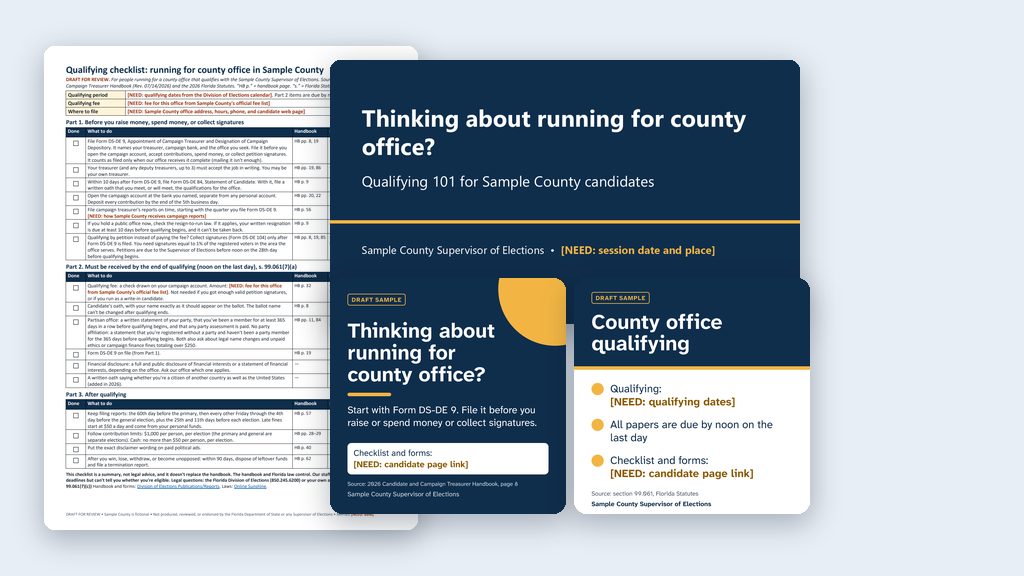
A qualifying packet for first-time candidates
Go to the Florida Division of Elections website and download the Candidate and Campaign Treasurer Handbook and the State Qualifying Handbook for the next election. If those aren't out yet, use this year's and flag every date. Get our office's candidate qualifying guide from our website too. Use them to build a qualifying packet for first-time candidates in [Your county]:

1. A one-page checklist of every form and deadline, in order.
2. A plain-language FAQ with the questions new candidates always ask.
3. A short PowerPoint for our candidate workshop.

Save everything in this folder. Put the handbook page number next to each checklist item, and end the FAQ and the deck with a list of sources.
The document it will get: 2026 Candidate and Campaign Treasurer Handbook, PDF from the Florida Division of Elections
The document it will get: 2026 State Qualifying Handbook, PDF from the Florida Division of Elections
Fill in anything in [brackets] with your own details.
4. Watch it work, and answer its questions
It tells you what it’s doing as it goes. When it asks to download a file, create a folder, or run something, read the request and say yes or no. If it asks you a question (“Which qualifying period do you want?”), just answer it like you would a coworker.
5. Read everything, then ask for changes
Open the folder in File Explorer and read everything it made: every checklist line, every FAQ answer, every slide. This is where your experience does the work. If you’ve run qualifying, a missing form or a wrong deadline jumps out at you. If you haven’t, hand the packet to whoever has. Then ask for changes in plain words: “Move the filing fee section to the top of the FAQ and make the deck 10 slides. Tell me what you cut.”
6. Next time, pick up where you left off
Start a new session on the same folder and say: “Look at what’s in this folder and tell me where we left off.” It reads the files and catches up.
Give each project standing instructions
Every project folder can hold a short instructions file that the AI reads at the start of every session. Claude looks for a file named CLAUDE.md. ChatGPT’s Codex looks for AGENTS.md. You don’t have to write it yourself:
 Example output
Say it or type it
Set up the project's instructions file
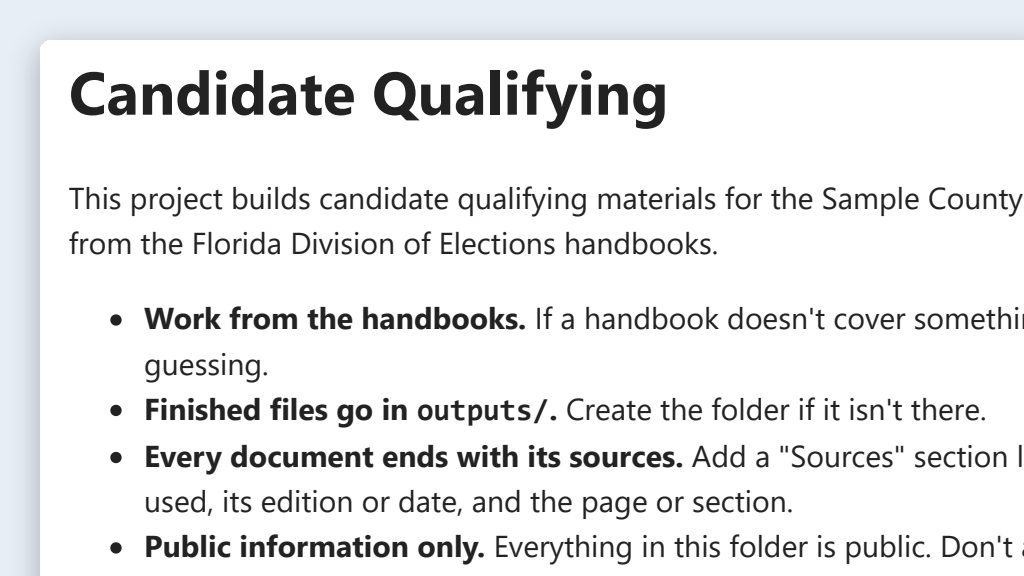
Make a CLAUDE.md for this folder. Say that this project builds our candidate qualifying materials from the state handbooks, that finished files go in an outputs folder, that every document ends with its sources, and that everything in this folder is public information. Keep it short.
Using ChatGPT? Say AGENTS.md instead of CLAUDE.md.
Want a ready-made one? Download the starter folder (zip). It has a CLAUDE.md template for election offices, a notes log, an empty file for requests you want to reuse, a one-page safe use card, and a README. Everything in it is generic and made up, with nothing from a real office.
It pays off the next time: a new session reads the CLAUDE.md first, so it already knows where finished files go and what the rules are.
I keep one main folder, “Claude Code Access,” with a folder for each project, and each project has its own CLAUDE.md. More on what to put in one: CLAUDE.md: standing rules for a project.
Two more real projects
These are jobs I’ve actually done this way.
Rolling last election’s project plan forward
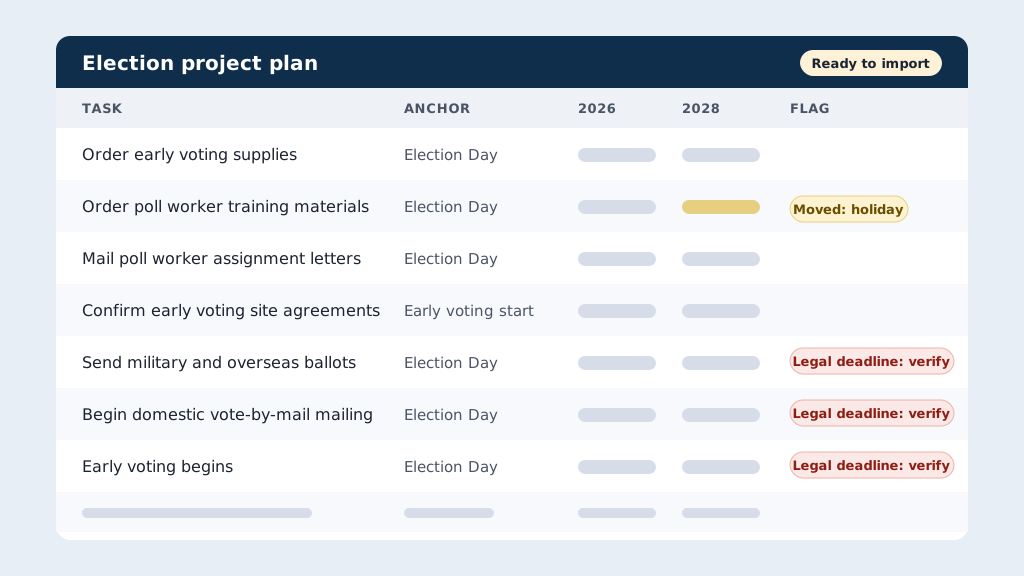
I exported a past election’s Asana project to a CSV file, put it in a folder, and had Claude Code rebuild it for the next election with the right due dates. The same idea works with Smartsheet, monday.com, or a plain spreadsheet.
Folder: Election Project Rollover
 Example output
Say it or type it
Rebuild the project for the next election
The CSV in this folder is our project plan from the last general election. Rebuild it for the next one on [New election date]: same tasks and sections, with every due date moved to match. Check the Division of Elections' Election Dates and Activities Calendar and flag every task whose deadline is set by law. Save a new CSV I can import, plus a short list of what you changed.
The document it will get: 2026 Election Dates and Activities Calendar, PDF from the Florida Division of Elections
Fill in anything in [brackets] with your own details.
Clean the export first. A project export can hold staff names or emails. Delete every column that holds personal information, then put only the cleaned file in the folder. The full export stays out.
More detail: Election project template rollover.
A folder just for maps
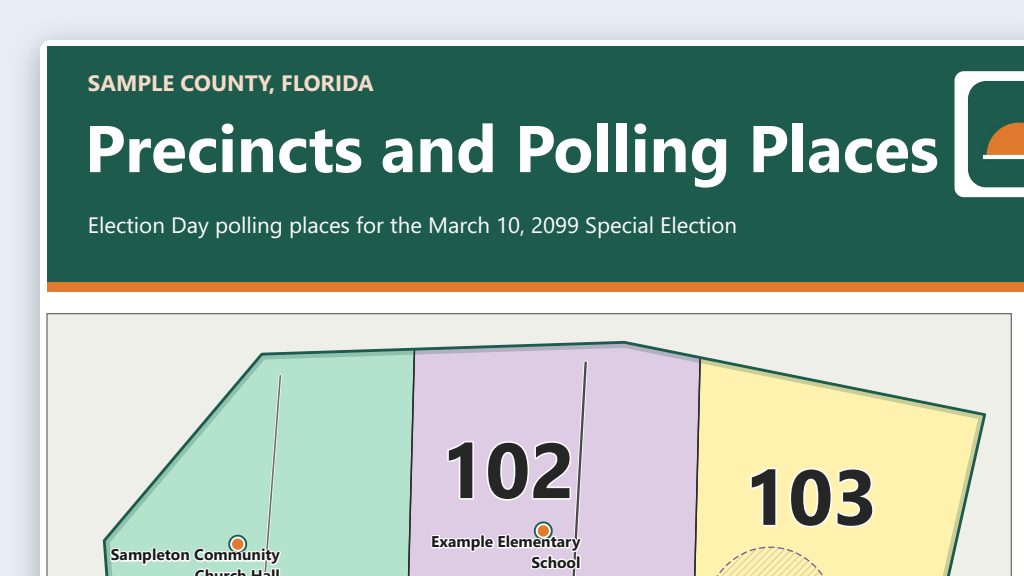
I have a Claude Code project just for maps. It pulls public shapefiles from county and city GIS sites and the Census Bureau’s TIGER/Line files, works with QGIS on my computer, and turns out large-format maps for our plotter.
Folder: Maps
 Example output
Say it or type it
An early voting map for the lobby
Make a 36-by-48-inch map of our early voting sites for the lobby. Get our county boundary and major roads from the Census Bureau's TIGER/Line files, and the site addresses from the early voting page on our website. Place each site using our county GIS address points. Set it up as a QGIS project in this folder, export a PDF ready for the plotter plus a letter-size proof to check first, and use our website's colors.
More detail: Precinct and polling place maps.
Tips for bigger projects
- Pick jobs you know. The bigger the project, the more it matters that you (or someone next to you) could have done it by hand. That’s what makes you able to judge the result. More on this: you’re the check.
- Ask for the plan first. For a big job, start with: “Before you do anything, tell me your plan.” Read it, adjust it, then say go.
- Have it keep notes. “Keep a notes file in this folder with what you did and what’s left.” Next session, that file brings it right back up to speed.
- Start fresh when it gets slow. Very long sessions get slower and can lose track of early details. Start a new session on the same folder. The files and notes are all still there. (Why this happens.)
- Read before you approve. When it asks permission, read what it wants to do. Permissions, explained.
- Public files only. The AI can read everything in the folder. Keep voter records and anything confidential out of it. If a file comes out of a system, delete every column that holds personal information first, then put only the cleaned file in the folder. See the Safe Use Framework.
- Back it up. An external drive can be lost or fail. Copy finished work to where your office keeps its records.