If you work in one of Florida’s smaller election offices, you know the drill. A handful of people cover everything: qualifying, poll workers, vote-by-mail, the website, and the phones. Nobody has “IT” in their job title, and when something breaks, you call your local computer contractor or the vendor.
You’re far from the only office like this. As of August 2026, 21 of Florida’s 67 counties had fewer than 25,000 active registered voters, and the smallest had fewer than 5,000 (Division of Elections registration statistics). In the smallest dozen or so offices, the staff pages on their websites show about three permanent staff, Supervisor included. None lists a dedicated IT position. Offices like yours have the most to gain from AI and the least time to learn it. This page skips everything you don’t need this week.
Which page is yours? First time with AI: Getting Started. Three people and no IT: this page. Bigger jobs later: Folder Projects.
Before you start (about 20 minutes, once)
- Tell your Supervisor what you’re going to try. See Who to tell.
- Get your contractor’s OK, then install the desktop app. Claude or ChatGPT, on a paid account you use only for work, never a free or personal one. Getting Started walks you through installing it and turning off training.
- Make a main folder called
AI Projectson your C: drive, OneDrive, or an external drive. Each project below gets its own folder inside it. For a head start, download the starter folder (zip): aCLAUDE.mdinstructions file, a notes log, an empty prompts file, a one-page safe use card, and a README. It’s generic and made up, with nothing from a real office. - Agree on one rule for the week: public documents only. Nothing with a voter’s name, nothing internal. If a file comes out of a system (an export, a poll worker list, a CSV or Excel file), delete every column that holds personal information first, then put only the cleaned file in the folder.
- Start a simple log. A sheet of paper is fine. For each project, write down how long it used to take, how long it took with AI (counting your check), and what you had to fix.
Every project works the same way: make the folder, open it in the app (how), say the prompt (out loud or typed), then read every page it made. You know this work, so you’re the check. Why that matters.
The five projects
1. Turn a statute into plain language
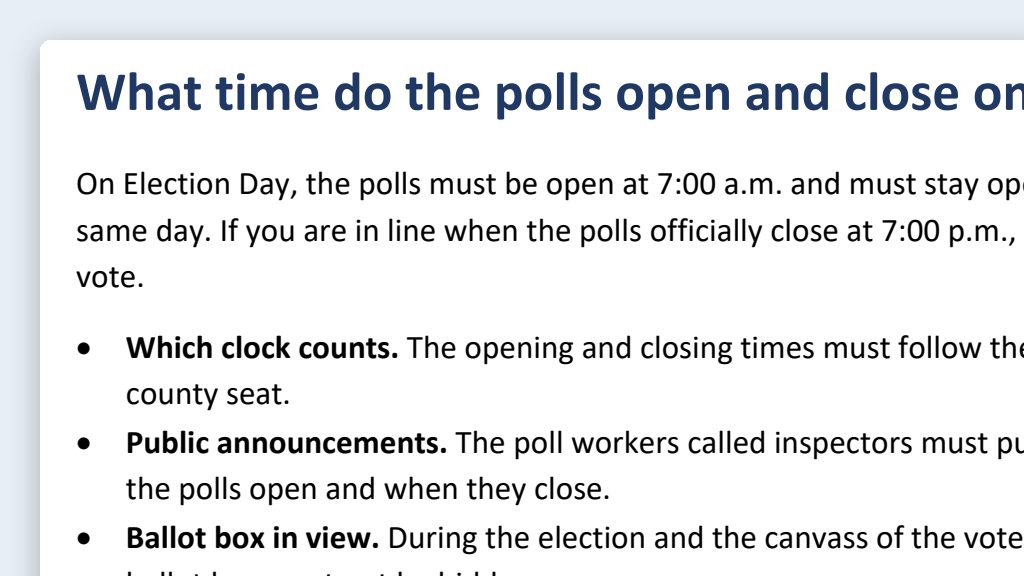
Folder: Plain Language. What you get (about 15 minutes): a short, plain-language version of a Florida law that voters ask about, ready for your website or a handout. A good first try is s. 100.011, F.S., which sets polling hours.
 Example output
Say it or type it
Rewrite a statute for voters
Go to Online Sunshine and get the current text of section [Statute number], Florida Statutes. Rewrite it as a short web page that a voter with no election background can understand, with three common questions and answers at the end. Save it in this folder as a Word document, with a link to the statute at the bottom.
Fill in anything in [brackets] with your own details.
Check this: Read the original and the rewrite side by side. Every date, deadline, and requirement must match. Full walkthrough: Plain-language statute explainers
2. Make a poll worker recruitment flyer
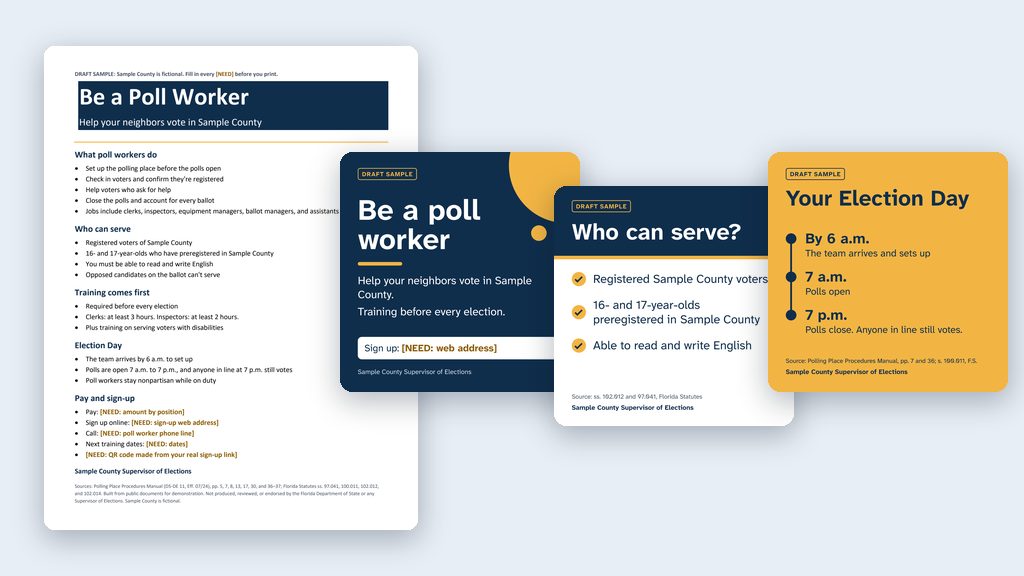
Folder: Poll Worker Flyer. What you get (about 20 minutes): a branded one-page flyer for the library bulletin board or a recruitment table.
 Example output
Say it or type it
A recruitment flyer
Go to the Florida Division of Elections website and download the latest Polling Place Procedures Manual. Then look at the poll worker page on the [Your county] County Supervisor of Elections website. Make a one-page flyer that gets people to sign up: what poll workers do, who can serve, the training, the pay, and how to sign up. Use our website's colors and logo, add a QR code to our sign-up page, and save it in this folder as a Word document and a PDF.
The document it will get: Polling Place Procedures Manual (form DS-DE 11), PDF from the Florida Division of Elections
Fill in anything in [brackets] with your own details.
Check this: Who can serve and training hours against s. 102.012, F.S. and s. 102.014, F.S. Pay and dates against your office’s current numbers. Scan the QR code with your phone. If your own poll worker page says two different things (like different hours or lifting limits), fix the page before you print. The manual isn’t on the Division’s Publications page; if the app can’t find it, download it from the link under the prompt and save it in the folder. Want slides instead? Two poll worker decks from one prompt
3. Social posts and a radio spot from your press release
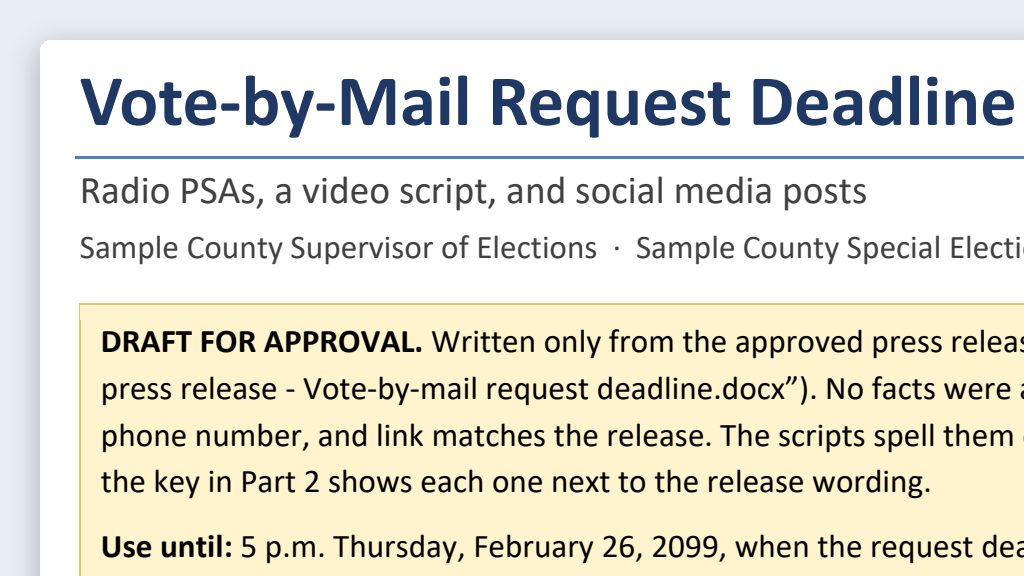
Folder: Press Release Posts. What you get (about 15 minutes): a few posts and a 30-second PSA (public service announcement) script, built from something your Supervisor already approved. Save the approved release in the folder first.
 Example output
Say it or type it
Posts and a PSA from an approved release
The press release in this folder is approved and published. Turn it into three Facebook posts, one Instagram caption, and a 30-second radio script. Keep every date, time, and address exactly as the release has them. Save them all in one Word document in this folder.
Check this: Every date, time, place, and phone number must match the release, word for word. Then send the posts through your normal approval. Full walkthrough: Social media PSA scripts
4. A candidate qualifying checklist and FAQ
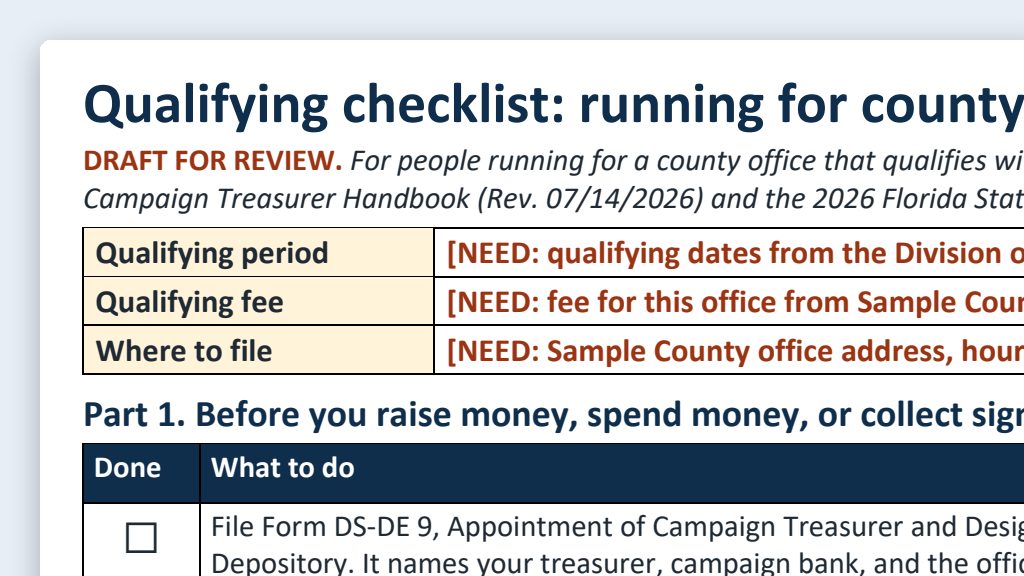
Folder: Candidate Qualifying. What you get (about 20 minutes): a one-page checklist and a short FAQ for people thinking about running, the kind of handout that cuts down on repeat phone calls during qualifying.
 Example output
Say it or type it
Qualifying checklist and FAQ
Go to the Florida Division of Elections website and download this year's Candidate and Campaign Treasurer Handbook. Make a one-page qualifying checklist and a 10-question FAQ for people thinking about running for a county office in [Your county]. Put the handbook page number next to each item, and save both in this folder as Word documents.
The document it will get: 2026 Candidate and Campaign Treasurer Handbook, PDF from the Florida Division of Elections
Fill in anything in [brackets] with your own details.
Check this: Dates, fees, and forms change by election year and by office. Check them against the handbook it saved in the folder, and have whoever handles qualifying read it before a candidate sees it. Full walkthrough: Candidate handbook quick reference
5. “What did the state publish about this?”
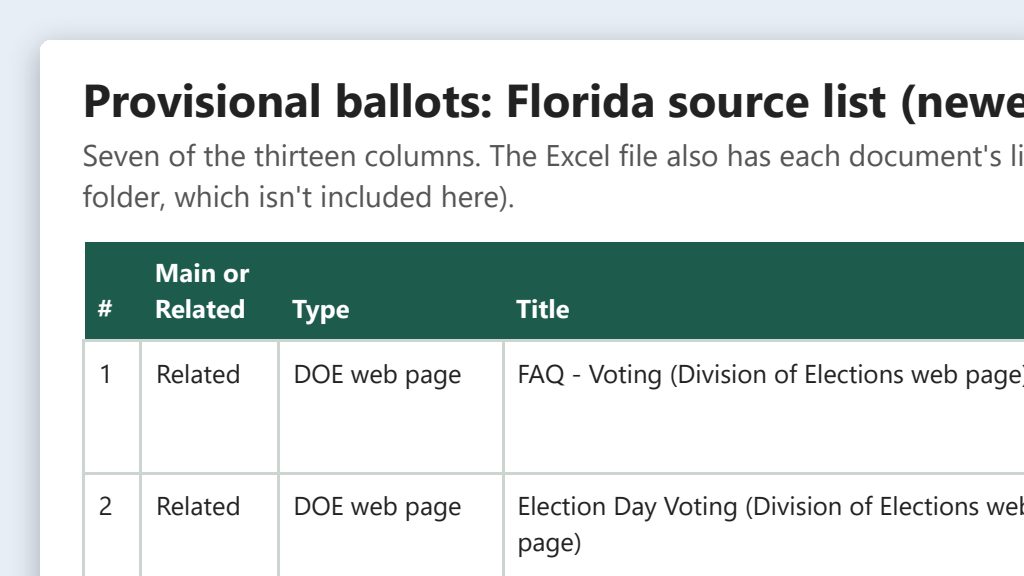
Folder: State Research. What you get (about 20 minutes): the official Division of Elections publications, forms, and rules on one topic, downloaded into a folder with a one-page summary, so you’re not clicking through websites for half an hour.
 Example output
Say it or type it
Find what the state published
Search the Florida Division of Elections website, flrules.org, and Online Sunshine for everything the state has published about [Topic] since [Month and year]. Download the documents into this folder and make a one-page summary with the title, date, link, and two sentences on each one, newest first.
Fill in anything in [brackets] with your own details.
Check this: Open a few of the links yourself and make sure the dates match what the summary says. Full walkthrough: AI research assistant
Keep it simple this week
Voter data, passwords, and the second read are permanent. Internal documents and connectors are “later, with a plan.” Safe Setup and Going Further cover them when you’re ready.
Who to tell
- Your Supervisor, before you start. Keep it to a minute: “I’d like to try an AI desktop app this week on public documents only. No voter information, training turned off, and I’ll read everything it makes before it’s used.” How to Ask has more talking points.
- Your computer contractor, before you install. Ask them to OK the desktop app on the computer you’ll use. If they manage your Microsoft 365, they can also tell you whether Copilot is turned on.
- Your coworkers. Everyone should know the green, yellow, red rule. Print the one-page checklist and post it by the printer.
- Whoever handles records. Your records management liaison officer (RMLO) should know that work chats can be public records. In a small office, that might be you. Here’s why it matters.
Your week, one day at a time
About 15 to 45 minutes a day. Fit it around the phones.
| Day | Do this | Time | You’re done when |
|---|---|---|---|
| Monday | Tell your Supervisor, install the app, turn off training, make your AI Projects folder, and start your log. | 30 min | The app is open on an empty project folder. |
| Tuesday | Project 1: A plain-language statute. | 15–20 min | A coworker has read it side by side with the law. |
| Wednesday | Project 2 or 4, whichever season you’re in. | 20 min | Pay, dates, and fees are checked against current numbers. |
| Thursday | Project 3: Posts and a PSA from an approved press release. | 15 min | It has gone through your normal approval. |
| Friday | Project 5: Research one topic. Then spend 10 minutes with your log. | 30 min | You know which project you’ll do again next week. |
On Friday, answer three questions from your log. What saved real time after you counted your check? What did you have to fix most often? Which one will you do again? Share the answers with your Supervisor.