The problem
Put your website, your social media profiles, your printed voter guide, and your email signature side by side. You may find three shades of blue, two versions of the logo, and three ways of writing the office’s name. Voters notice, even if they can’t say why. A consistent look helps people recognize real information from your office, which matters most when false information is going around. If nobody ever wrote the rules down, things drift as different people and vendors make materials over the years.
The prompts
Start in a folder
…\AI Projects\Brand Cleanup\
Make the folder
On your C: drive, OneDrive, or an external drive. Your choice.
Open it in the app
Claude: Code tab → under the message box, choose Local → Open folder… ChatGPT: open Codex, click Add new project (or press Ctrl+O), then pick the folder. To add more folders later, open the project menu, choose Edit project, then Add folder.
Say what you want
Use the prompt below. Then open what it saved in the folder.
Say them out loud or type them. Change the words to fit your office. The AI goes and gets the public documents itself and saves what it makes in the folder.
Prompt 1 · Say it or type it
Inventory and decision worksheet
We're cleaning up our office's brand. Go to our website, [Your website], and get the exact colors and fonts from the site's code. Read the PDFs on the site too, like our voter guide, and take their colors and fonts from the files. Then look at the screenshots and photos in this folder of our social media, email signature, and printed materials.

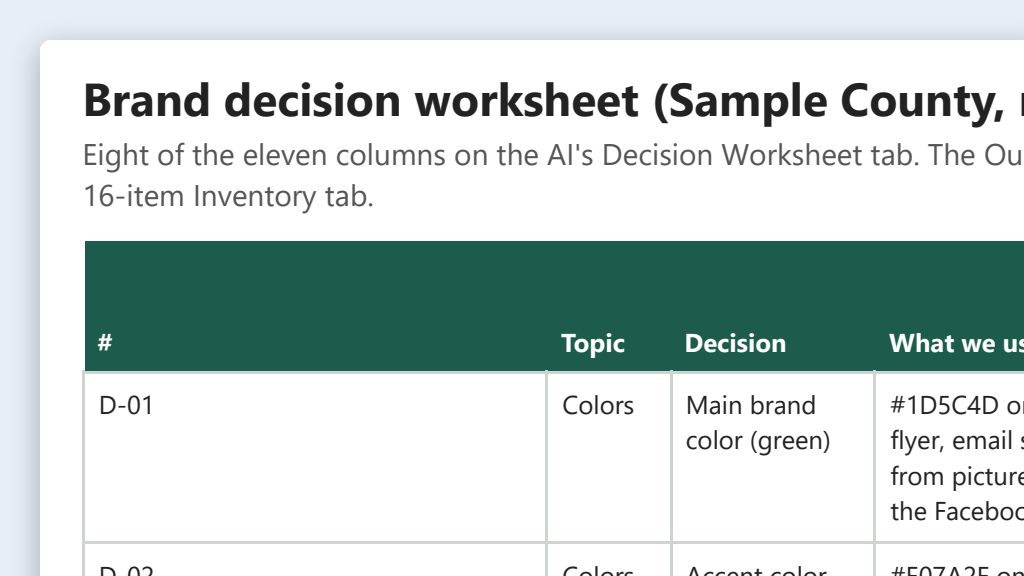
Make an Excel workbook in this folder with two tabs. The first is an inventory: each item, where it appears, its colors, fonts, logo version, how it writes the office name, and its tone. Mark any color or font you guessed from a picture. The second is a decision worksheet with one row per decision: colors, fonts, logo, office name, key terms, tone, and contact details like our web address, phone numbers, branch names, and hours. Show what we use now, a suggestion with a one-line reason, and blank columns for our choice and who approved it. Give each color's contrast ratio on white, and point out any text on a photo or colored background.
Fill in anything in [brackets] with your own details.
Colors read from screenshots and photos are estimates. The website’s code, the PDFs themselves, and your original design files are exact.
Prompt 2 · Say it or type it
Plan the rollout
We approved our brand board, and it's in this folder now. Add a rollout plan tab listing everything that carries our brand, who owns it, what has to change, and whether it's free or needs a reprint or a vendor, with the free, high-visibility items first.
Board not signed off yet? Say “our draft brand board” instead, so the plan doesn’t claim approval.
Prompt 3 · Say it or type it
Check one piece against the brand board
Check [File name] in this folder against our brand board and list every place it doesn't follow it, with the fix. Leave alone any wording that quotes the law.
Fill in anything in [brackets] with your own details.
What you need
- The Claude desktop app (Code tab) or the ChatGPT desktop app (Codex) and a folder called something like
Brand Cleanup. Put it wherever you like: the C: drive, OneDrive, or an external drive. - Screenshots and photos of what the AI can’t reach on its own, saved in the folder: each social media profile and a recent post, your email signature, letterhead, slide template, and printed items (voter guide, poll worker flyer, signs). The AI reads your website itself, including the PDFs posted on it. Colors and fonts read from inside a PDF are exact, not guessed from a picture.
- Your original logo files, from whoever designed them, saved in the folder.
- The person who approves your branding, usually the Supervisor or your communications lead, for one meeting.
- A contrast checker. The free WebAIM Contrast Checker works in any web browser.
Step by step: the clean-up exercise
Plan for four short sessions over a week or two.
Session 1: Gather (about 1 hour)
- Make the folder (
Brand Cleanup) and save one example from every channel in it, plus the original logo files. - Open it in the app. In the Claude desktop app, open the Code tab, and in the row under the message box choose Local, then Open folder…. In the ChatGPT desktop app, open Codex, click Add new project (or press Ctrl+O), and pick the folder. Folder projects walks through it.
Session 2: Inventory (about 30 minutes)
- Say the first prompt. Speak it or type it. Open the workbook and read the inventory tab. Don’t be surprised if the list of differences is long.
Session 3: Decide (one 30–45 minute meeting)
- Print the decision worksheet tab and bring it to the meeting.
- For each row, pick one: one primary color, one logo version, one way to write the office name, one term for each program. Check any new color pair in the contrast checker before you agree on it.
- Write down each decision, who approved it, and the date.
Session 4: Write it down and roll it out (about 1 hour, then ongoing)
- Turn the decisions into a one-page brand board and save it in the folder. Brand board from your public website walks through the format.
- Ask for the rollout plan (the second prompt). Start with the free changes people see every day. Mind the election calendar: in the middle of an election, fix real errors now (a wrong phone number or web address) and save redesigns of voter materials until after the election is certified.
- Before anything new goes out, check it with the third prompt.
- Share the brand board and master logo files in one shared folder, and tell staff and vendors where it is.
One possible outcome
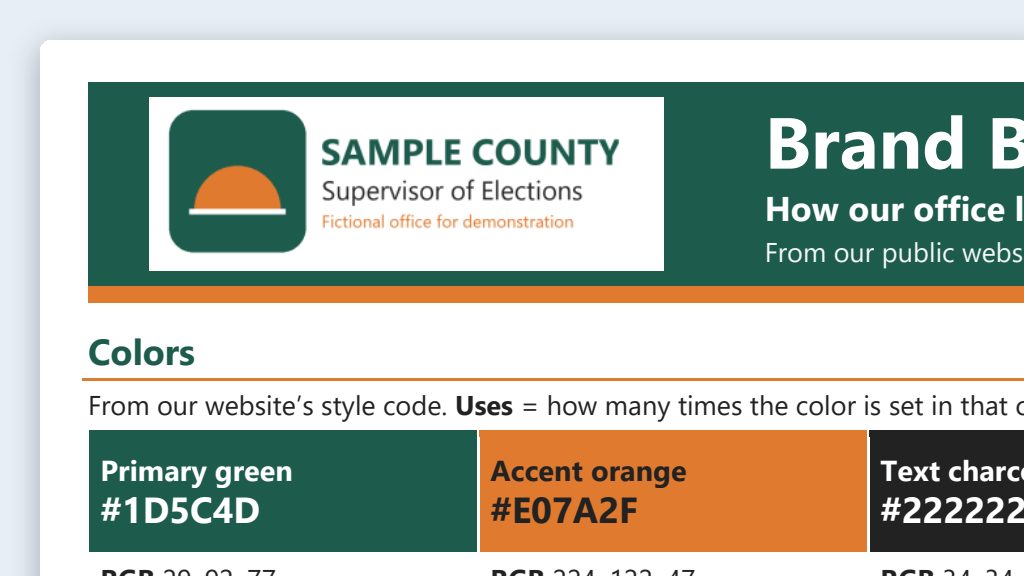
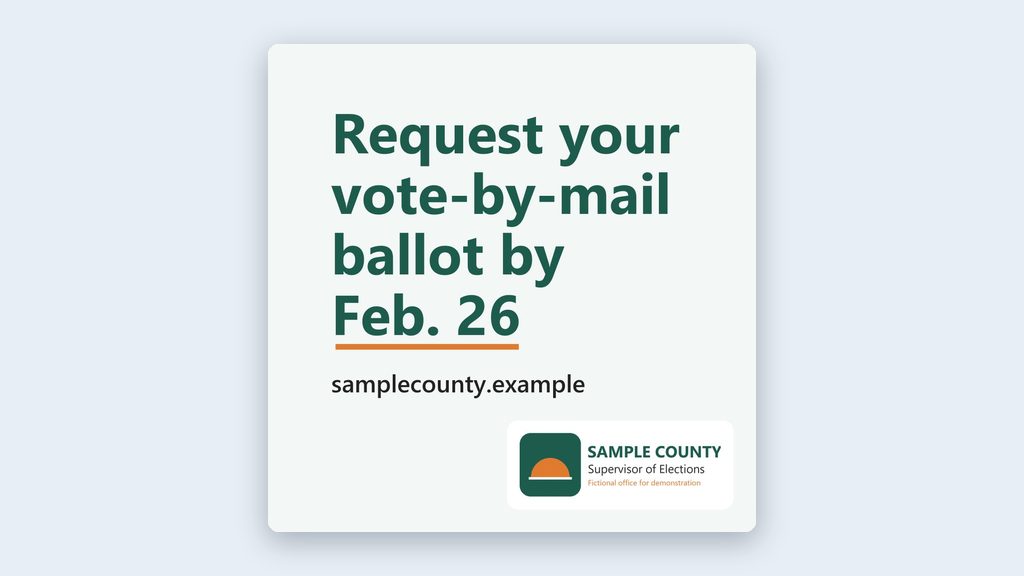
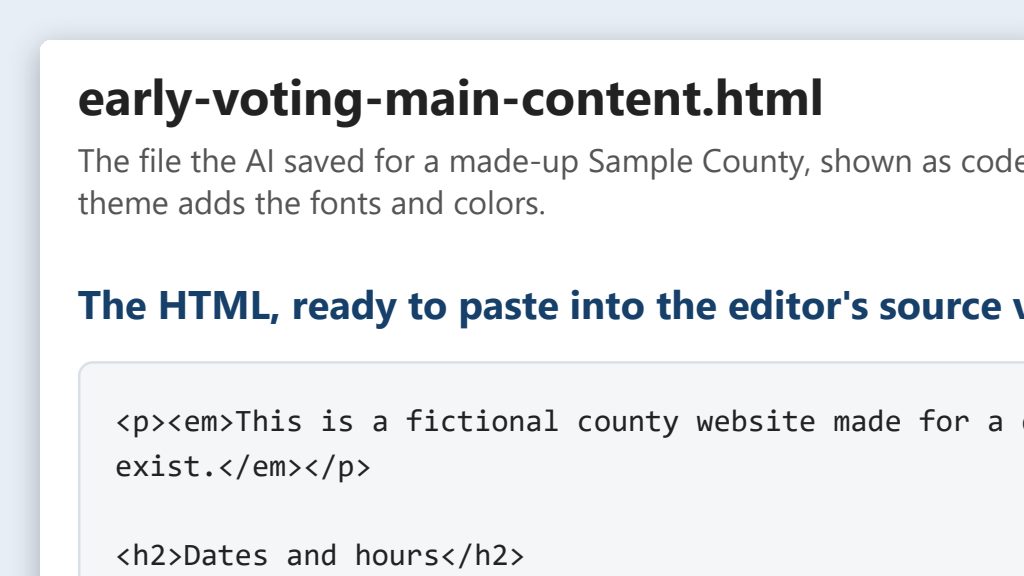
One run of the first prompt, on a stand-in website and three made-up pictures for a made-up Sample County.
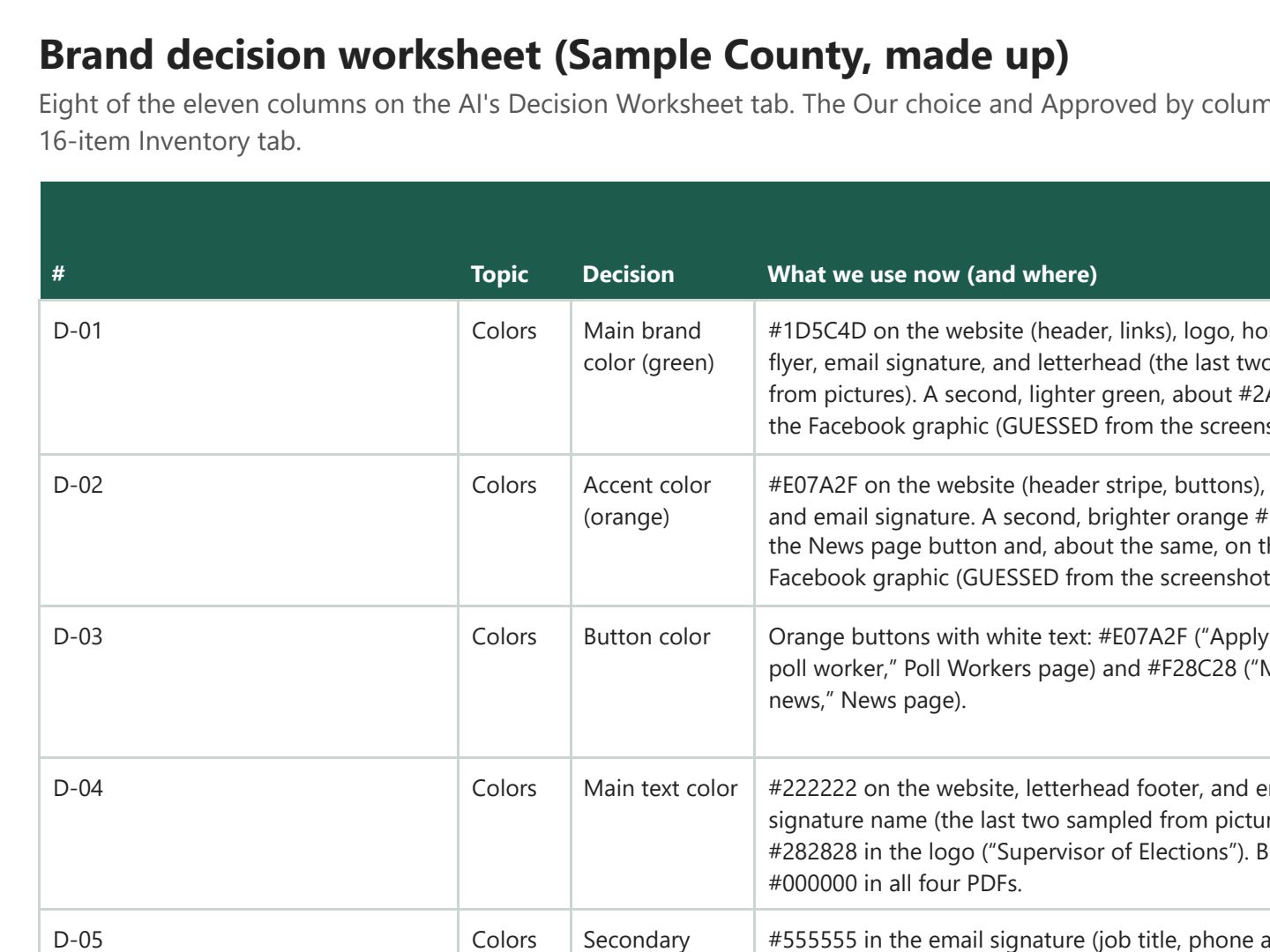 (opens the full version, PDF, 5 pages, 155 KB)
Word, Excel, and PowerPoint files download to your phone; the PDF opens first. File names end in -DRAFT because AI output is a draft until a person checks it. Web addresses shown in these samples are made-up and will not open.
Make it yours
- No brand board yet? Start with Brand board from your public website, then use this exercise to apply it.
- Graphics for social media. On-brand image prompts keeps AI-made graphics inside your rules.
- Find brand slips on your website. The website content audit includes a brand and wording check.
Time: by hand vs. with AI
By hand
2–3 days of work, spread over weeks
AI’s part, measured
About 30 minutes
in a test run of these prompts
With AI
About 1 day of work, spread over a week or two
your time, including review
About the measured time: “AI’s part” is how long the AI took, start to finish, in a test run of these prompts on September 27, 2026. It works on its own while you do something else. “By hand” and “With AI” are estimates of your own time.
Honest estimate. The AI speeds up the inventory, the decision worksheet, and the rollout plan. The decisions themselves still take a meeting with whoever approves your branding, and reprinting materials takes as long as it takes.
Checking the work: what an expert looks for
You know this work, so you’re the best person to check it. Open every file it made and read every page. If part of it is outside what you know, hand that part to someone who knows it. These are the spots that most often need a fix:
- Colors and fonts read from a screenshot or a photo of print are guesses. Trust the website’s code and your original design files.
- Never let an image tool redraw your seal or logo. Use the original files, and keep the master copies in one shared folder.
- Check every brand color in the WebAIM Contrast Checker before you adopt it. AI math can be off, and a color that looks fine on a banner may fail as text on a web page.
- Your website theme may limit which colors and fonts you can set. Ask your IT staff or web vendor what’s possible before you promise a change.
- Get sign-off from whoever approves your branding before anyone starts applying it. Then update free items first and switch printed items as you reorder them, not all at once.
Last reviewed October 2, 2026.