The problem
Outreach is where you meet future voters, but every event starts from a blank page. A high school registration drive means working with the school’s schedule, bringing the right forms, knowing what 16- and 17-year-olds can and can’t do, and staffing a table around class periods. A civics night at the library needs a flyer, a setup list, and someone who remembers the extension cord. Most offices rebuild all of it every time, because last year’s checklist lives in one person’s head.
The prompts
Start in a folder
…\AI Projects\Outreach Events\
Make the folder
On your C: drive, OneDrive, or an external drive. Your choice.
Open it in the app
Claude: Code tab → under the message box, choose Local → Open folder… ChatGPT: open Codex, click Add new project (or press Ctrl+O), then pick the folder. To add more folders later, open the project menu, choose Edit project, then Add folder.
Say what you want
Use the prompt below. Then open what it saved in the folder.
Say them out loud or type them. Change the words to fit your office. The AI goes and gets the public documents itself and saves what it makes in the folder.
Prompt 1 · Say it or type it
Build the event kit
We're holding a voter registration drive at [School or place]. Build me an event kit and save it in this folder:

1. A planning checklist by timeline, from six weeks out through follow-up, including how completed applications get back to our office safely the same day.
2. A one-page flyer for high school juniors and seniors, as a Word document, that explains preregistration in one plain sentence.
3. An Excel volunteer schedule in 30-minute slots, with the start time in one cell I can change, and stations for welcome, registration help, and questions. Leave the name and contact columns blank.

Get the eligibility and preregistration wording from the Florida Division of Elections website, and our contact information and colors from the [Your county] County Supervisor of Elections website. If there's a logo on our site, put it on the flyer. List your sources at the end of the checklist.
Fill in anything in [brackets] with your own details.
Speak it or type it. Change the audience and stations to fit your event.
Prompt 2 · Say it or type it
Add the date and times
The drive is [Day, date, and times], in the cafeteria during lunch periods. Put that on the flyer and set the schedule to match.
Fill in anything in [brackets] with your own details.
Prompt 3 · Say it or type it
Reuse it for a different event
Make a second version of the checklist and flyer for a civics night at the public library, for adults, on [Day, date, and time]. It ends after our office closes, so plan for completed applications to reach us the next business day. Save them in this folder.
Fill in anything in [brackets] with your own details.
What you need
- The Claude desktop app (Code tab) or the ChatGPT desktop app (Codex) and a folder called something like
Outreach Events. - The host’s details: contact person, room, times, and rules. Get these from the host, in writing.
- Nothing else you have to gather. The AI gets the state’s registration information and your office’s details from the web.
- Last year’s flyer or checklist (optional). If you’ve run drives before, put them in the folder and ask the AI to keep what worked and update the rest. See context is king.
Step by step
- Confirm the basics with the host first: date, times, room, contact, and any rules for visitors.
- Make the folder and open it in the app. Claude: Code tab, then under the message box choose Local and Open folder…. ChatGPT: open Codex, click Add new project (or press Ctrl+O), and pick the folder. (Full walkthrough: Folder projects.)
- Say the prompt. It saves the checklist, flyer, and schedule in the folder.
- Open all three from the folder. Check the preregistration wording against the box above, and every date, time, and place against the host’s confirmation.
- Say the follow-up with the event’s date and times, and anything else you’d change.
- Fill in names and contacts yourself in the Excel schedule.
- Have a second person review the flyer before it goes to the school or host.
- Keep the folder. After the event, tell the AI what you’d do differently and have it update the checklist. That’s how next year’s checklist gets better.
One possible outcome
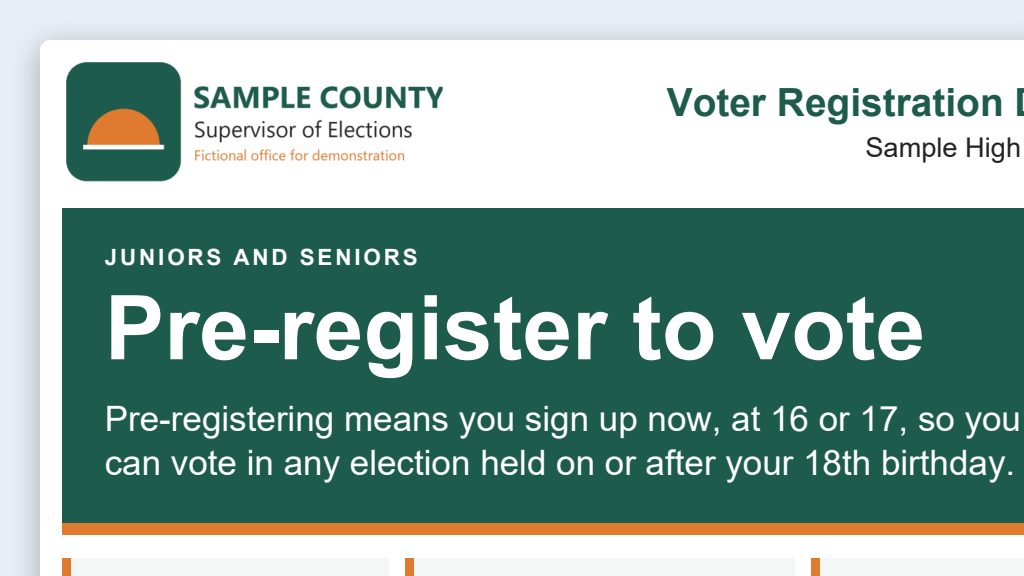
One run of the first prompt, for a drive at a made-up Sample High School in a made-up Sample County.
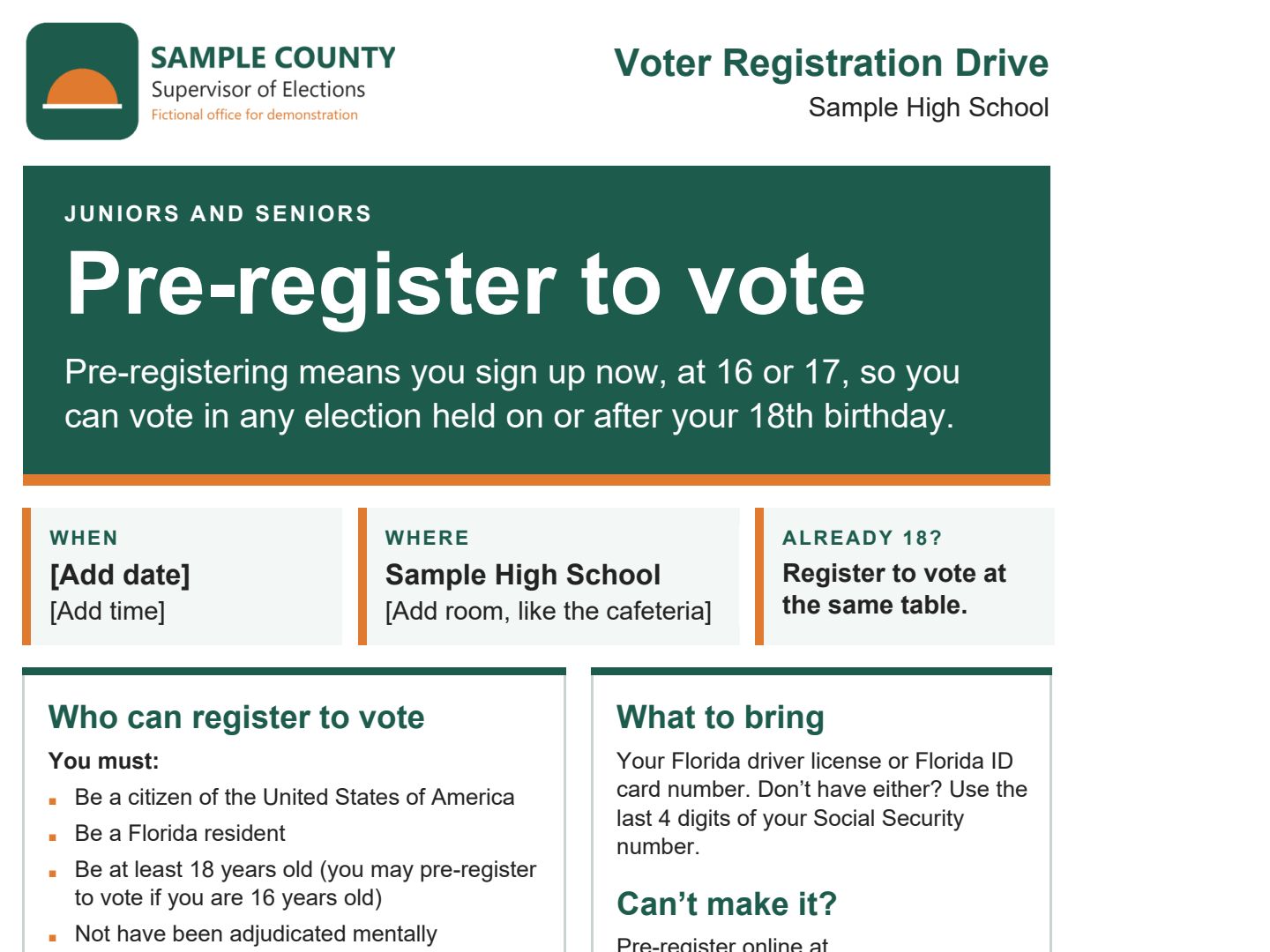 (opens the full version, PDF, 1 page, 116 KB)
Word, Excel, and PowerPoint files download to your phone; the PDF opens first. File names end in -DRAFT because AI output is a draft until a person checks it. Web addresses shown in these samples are made-up and will not open.
Make it yours
- Promote it. Social media posts and PSA scripts can turn the flyer into short posts.
- Recruit while you’re there. Two poll worker decks from one prompt includes a prompt that makes a version of the deck for high school students.
Time: by hand vs. with AI
By hand
4–6 hours
AI’s part, measured
About 15 minutes
in a test run of these prompts
With AI
1 hour
your time, including review
About the measured time: “AI’s part” is how long the AI took, start to finish, in a test run of these prompts on September 27, 2026. It works on its own while you do something else. “By hand” and “With AI” are estimates of your own time.
Estimate per event: about 15 minutes for the AI to build the kit, then 45 minutes to confirm details with the school or host, check the facts against official sources, and fill in names yourself. The phone calls and the event itself take as long as they always did.
Checking the work: what an expert looks for
You know this work, so you’re the best person to check it. Open every file it made and read every page. If part of it is outside what you know, hand that part to someone who knows it. These are the spots that most often need a fix:
- Check the eligibility wording against s. 97.041, F.S.: a qualified person may preregister on or after their 16th birthday and may vote in elections held on or after their 18th birthday. AI tools often mix in other states’ rules.
- Confirm the school’s rules (visitor check-in, which class periods, whether you can go into classrooms) directly with the school. Don’t let the AI guess them.
- Don’t give the AI volunteer or student names, phone numbers, or emails. Fill in the Name and Contact columns yourself after the schedule is built.
- Completed registration applications hold personal information. Plan how they get back to the office, and never photograph them or put them into any AI tool. Anyone who collects them and isn’t an employee or agent of your office may count as a third-party voter registration organization (s. 97.021, F.S.). Those organizations must register with the Division of Elections before collecting applications (s. 97.0575, F.S.). Ask your attorney before outside volunteers or student helpers collect forms.
- Before you print, check the flyer’s date, time, and address against the host’s confirmation, and its contact line against your website. Some websites hide the email address from tools, so it can come back missing. Make sure the logo is your office’s real file, and run Word’s accessibility checker.
Last reviewed October 2, 2026.