The problem
Every election cycle someone builds the office master calendar: registration deadlines, vote-by-mail deadlines, early voting, qualifying, canvassing board meetings, logic and accuracy testing, and reporting deadlines. The dates come from the Division of Elections calendar and the statutes, and then get retyped into Excel, Outlook, and a wall calendar. Retyping is where mistakes creep in, and one wrong deadline can cause real trouble.
The prompts
Start in a folder
…\AI Projects\Office Master Calendar\
Make the folder
On your C: drive, OneDrive, or an external drive. Your choice.
Open it in the app
Claude: Code tab → under the message box, choose Local → Open folder… ChatGPT: open Codex, click Add new project (or press Ctrl+O), then pick the folder. To add more folders later, open the project menu, choose Edit project, then Add folder.
Say what you want
Use the prompt below. Then open what it saved in the folder.
Say them out loud or type them. Change the words to fit your office. The AI goes and gets the public documents itself and saves what it makes in the folder.
Prompt 1 · Say it or type it
Build the master calendar
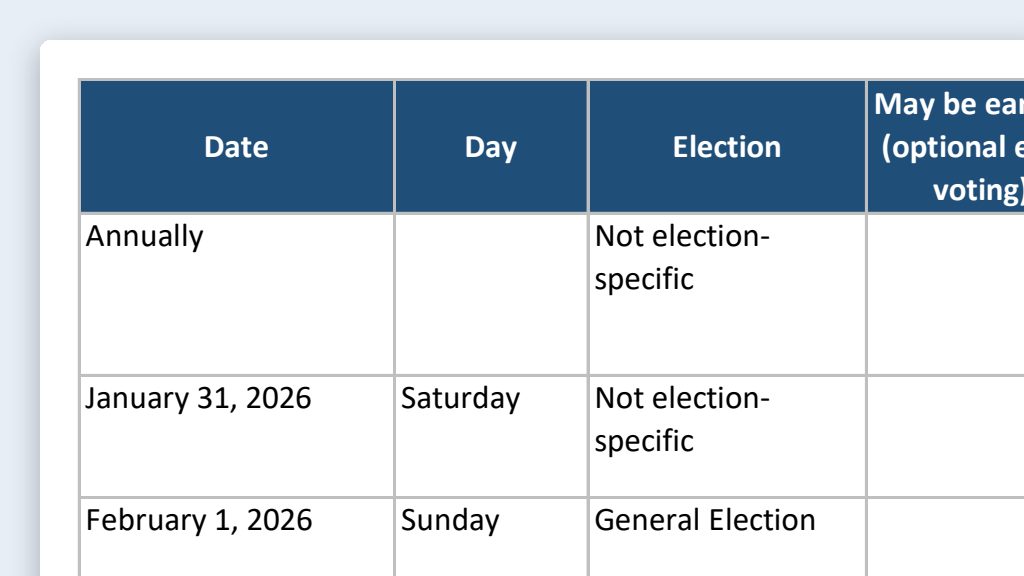
Go to the Florida Division of Elections website and download the Excel and PDF versions of the [Year] Election Dates and Activities Calendar. Use it to build our office master calendar as an Excel workbook, and save it in this folder.

Put one date per row, sorted by date, with the day of the week, the election, the activity in the calendar's own words and in plain language, and the law the calendar cites. For a date range, use the first date and keep the full range in another column. Copy every date exactly from the calendar; don't work any out yourself. Add a blank "Verified by" column for our initials. Put activities that only apply to other agencies on their own tab, unless they start one of our deadlines, like the state certifying results.

Our early voting starts [Date]. Flag every row the calendar says may be earlier for counties with optional early voting days, but don't change the date.

When you're done, tell me how many rows you made.
The document it will get: 2026 Election Dates and Activities Calendar, PDF from the Florida Division of Elections
Fill in anything in [brackets] with your own details.
If your county doesn’t offer optional early voting days, leave out the early voting paragraph.
Prompt 2 · Say it or type it
Add our own deadlines
Now add the local deadlines from the list in this folder. If the list doesn't say whether to count calendar or business days, ask me. Also tell me when a counted date lands on a weekend or holiday.
Prompt 3 · Say it or type it
Make the Outlook file
Make an .ics calendar file from the rows that have initials in "Verified by," as all-day events with the source in each description. Tell me how many events it has.
Only checked dates go into Outlook, so the calendar people actually look at never shows an unverified date.
What you need
- The Claude desktop app (Code tab) or the ChatGPT desktop app (Codex) and a folder called something like
Office Master Calendar, on the C: drive, OneDrive, or an external drive. - Nothing to download yourself for the state dates. The AI gets the Election Dates and Activities Calendar (PDF) (a PDF and an Excel file) from the Division’s Publications/Reports page. The Division’s Election Dates page has the key voter deadlines, and the Qualifying Information page has qualifying dates, if you want to cross-check.
- Your local deadlines, in a short Word or text file in the folder: what each one is, how many days before or after which event, and the statute, rule, or policy behind it. The state calendar already has the big statutory dates, like registration closing on the 29th day before each election (s. 97.055, F.S.).
- Last cycle’s master calendar (optional), if you keep one. Put it in the folder so the new one follows the same layout and keeps your local entries. See context is king.
- Local and municipal elections in your county. The state’s Local Elections Database lists elections counties have reported, by county and year.
- Excel and Outlook.
Step by step
- Make the folder and save your local deadlines file in it.
- Open it in the app. Claude: Code tab → under the message box, choose Local → Open folder…. ChatGPT: open Codex, click Add new project (or press Ctrl+O), and pick the folder. Folder projects walks through it.
- Say the first prompt. Speak it or type it. It downloads the calendar into the folder and builds the workbook.
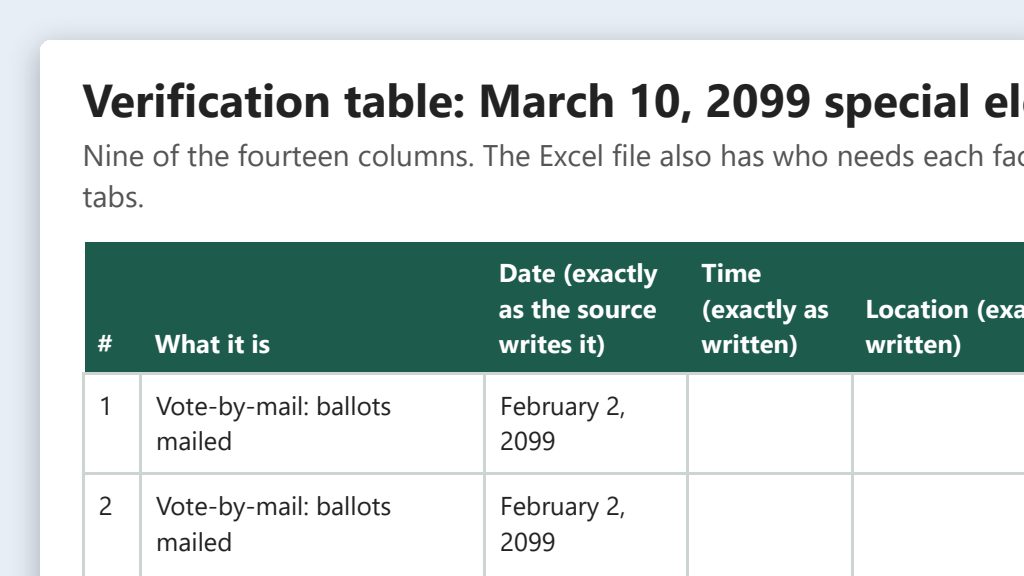
- Check every row. Open the PDF it downloaded next to the workbook. If you’ve built this calendar before, a date that’s off will stand out. For each row, compare the date and type your initials in “Verified by.” For the big deadlines (registration, vote-by-mail, early voting, canvassing, certification), have a second person check too.
- Add your local deadlines with the second prompt. Count each one yourself on a calendar, then have your supervisor or attorney confirm the counting rule for anything you haven’t counted before.
- Ask for the .ics file once the rows are initialed. If no rows have initials yet, it makes no file. That’s on purpose. Compare its event count with the number of verified rows.
- Import it into Outlook (steps below). Look at a few events to make sure the dates landed on the right days.
- Add internal items by hand in Outlook, after the AI step.
- When a date changes, fix it in the workbook first, then in Outlook. The workbook is your master copy.
Import the .ics file into Outlook
An .ics file is a standard calendar file that Outlook, Google Calendar, and Apple Calendar can all open. Importing makes a one-time copy of the events. It won’t update later on its own. All-day events avoid most time zone problems. If you add times, check that they show correctly in Outlook, especially in counties on Central time.
Classic Outlook for Windows:
- Go to File, then Open & Export, then Import/Export.
- Choose Import an iCalendar (.ics) or vCalendar file (.vcs) and select Next.
- Find your .ics file in the project folder, select it, and select OK.
- Choose Open as New. The events go into a separate calendar that shows up under “Other Calendars.” That makes it easy to check, share, or delete as a group.
New Outlook for Windows and Outlook on the web:
- Open Calendar and select Add calendar.
- Choose Upload from file, then Browse, and pick your .ics file.
- Choose which calendar to put the events in, then select Import.
One possible outcome
One run of the first prompt, for a made-up Sample County.
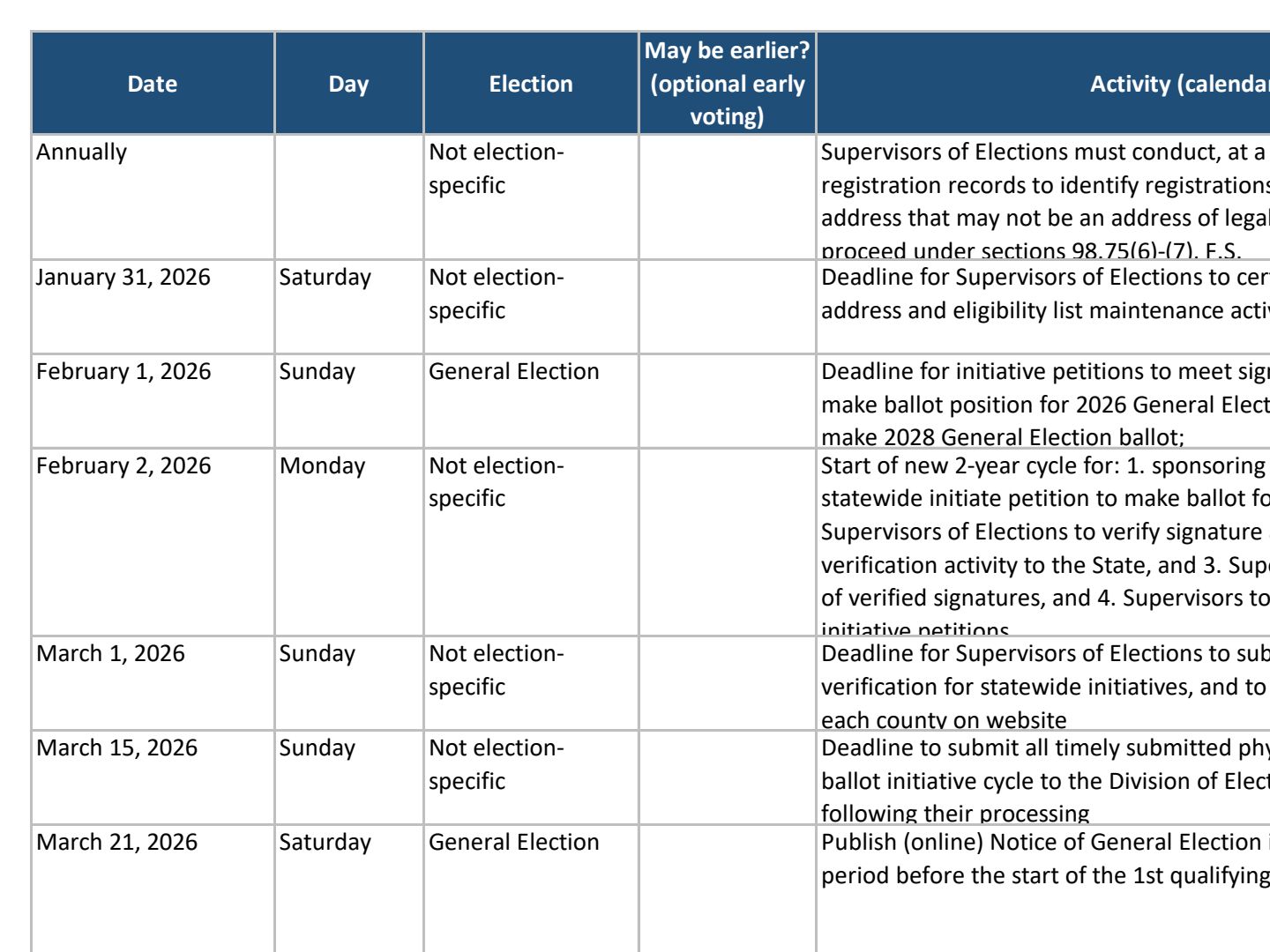 (opens the full version, PDF, 9 pages, 659 KB)
Word, Excel, and PowerPoint files download to your phone; the PDF opens first. File names end in -DRAFT because AI output is a draft until a person checks it. Web addresses shown in these samples are made-up and will not open.
Make it yours
- Next cycle, keep the folder. Say: “Download the new calendar, compare it with last cycle’s in this folder, and build the new workbook.” Then check every row again.
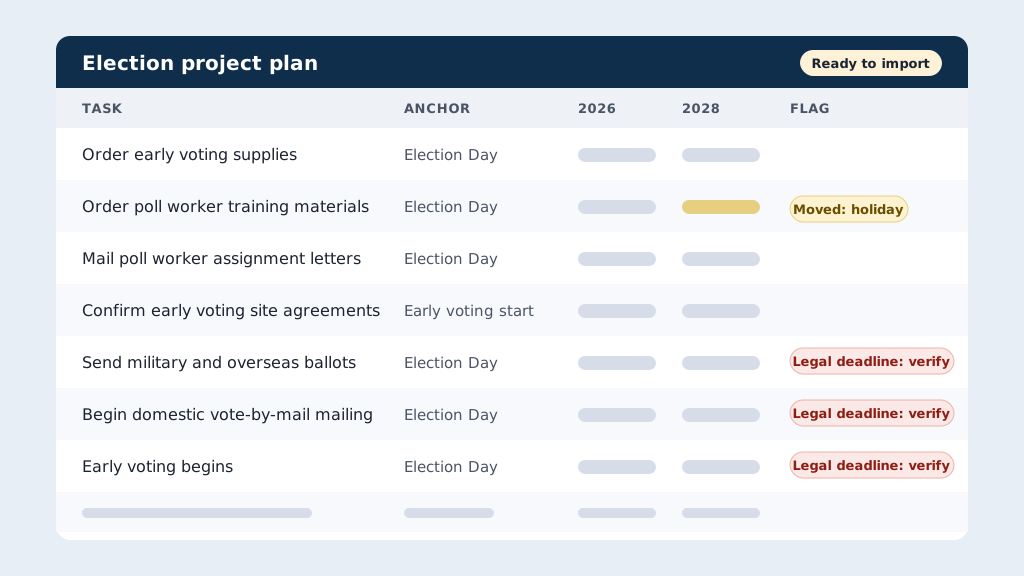
- Roll it into your project plan. Election project template rollover shows how to load dates like these into a task list for the whole office.
- Public-facing dates. For a voter-facing version, keep only the voter deadlines and use them for your election content calendar.
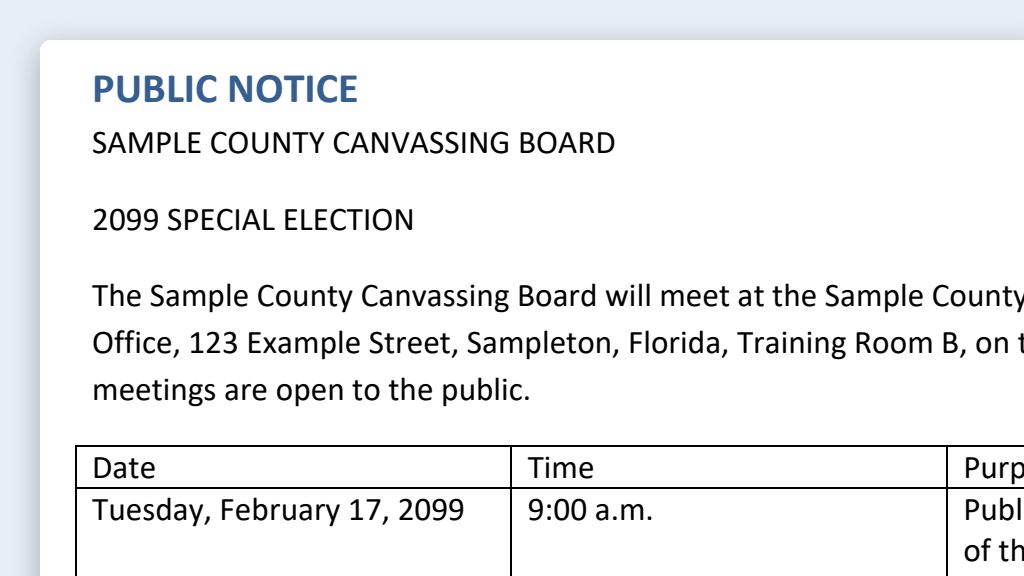
- Meeting notices. Canvassing board meetings have their own notice rules. See canvassing board meeting notices.
Time: by hand vs. with AI
By hand
4–6 hours
AI’s part, measured
About 1 hour 15 minutes
in a test run of these prompts
With AI
1–1.5 hours
your time, including review
About the measured time: “AI’s part” is how long the AI took, start to finish, in a test run of these prompts on September 27, 2026. It works on its own while you do something else. “By hand” and “With AI” are estimates of your own time.
In a test run, the AI took about 1 hour 15 minutes to download the calendar and build the workbook and the .ics file, while the person did other work. Plan most of the hour on checking every date against the source, which you’d have to do anyway. The time you save is the retyping.
Checking the work: what an expert looks for
You know this work, so you’re the best person to check it. Open every file it made and read every page. If part of it is outside what you know, hand that part to someone who knows it. These are the spots that most often need a fix:
- Never trust a date the AI worked out. Every date in your final calendar should match the Division of Elections calendar, a statute, or a date your office decided, and someone’s initials should say they checked it.
- Check that it got the current calendar. The Publications/Reports page shows a date next to each file, and the state updates calendars during the cycle.
- Imported calendar events don’t update themselves. If a date changes, fix the workbook first, then replace the Outlook events. Don’t leave both versions sitting in Outlook.
- Dates can change after you build the calendar: special elections, emergency changes, or new laws. Florida law lets the Governor suspend or delay an election in an emergency (s. 101.733, F.S.).
- Local and municipal elections aren’t in the statewide calendar. Check the state’s Local Elections Database and your own agreements with cities.
Last reviewed October 2, 2026.