The problem
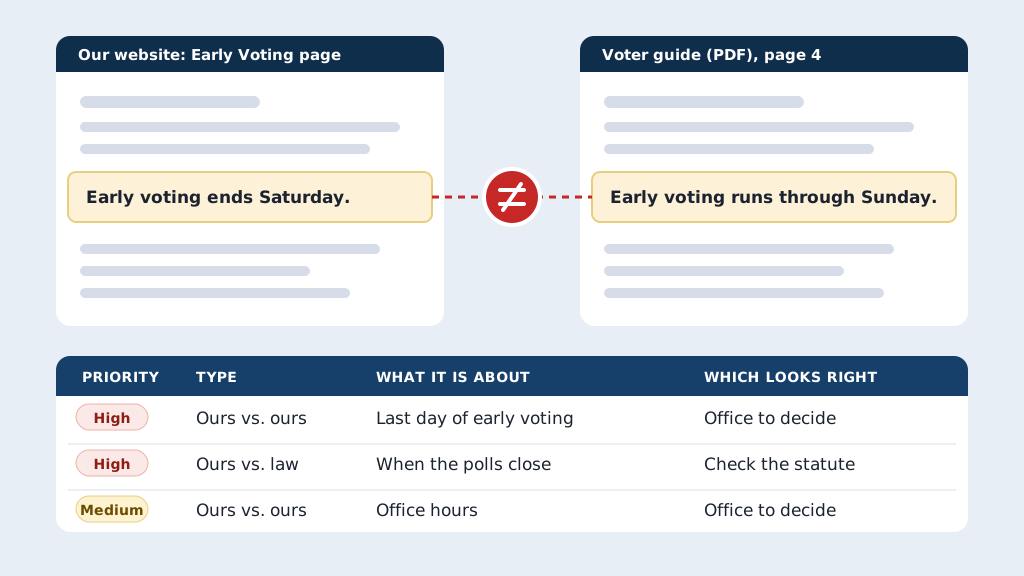
Your office tells voters the same facts in a lot of places: web pages, the voter guide, the polling place list, public notices, news releases, social posts, and mailers. They get written at different times by different people, and when something changes, one or two copies get missed. Laws change too, so a page written a few years ago may not match the statute anymore. Each document gets checked when it’s written, but almost nobody reads them all side by side. An AI tool can read everything you publish, line it up fact by fact, and hand you a list of every place you disagree with yourself or with the law.
The prompts
Start in a folder
…\AI Projects\Contradictions Check\
Make the folder
On your C: drive, OneDrive, or an external drive. Your choice.
Open it in the app
Claude: Code tab → under the message box, choose Local → Open folder… ChatGPT: open Codex, click Add new project (or press Ctrl+O), then pick the folder. To add more folders later, open the project menu, choose Edit project, then Add folder.
Say what you want
Use the prompt below. Then open what it saved in the folder.
Say them out loud or type them. Change the words to fit your office. The AI goes and gets the public documents itself and saves what it makes in the folder.
Prompt 1 · Say it or type it
Find where we contradict ourselves (and the law)
Read everything our office tells voters in public: every page on our website at [Web address], the PDFs we link to (voter guide, polling place list, notices, and reports), this year's news releases, and anything I saved in this folder. Skip pages that list individual voters. Save a copy of each source in a Sources folder here.

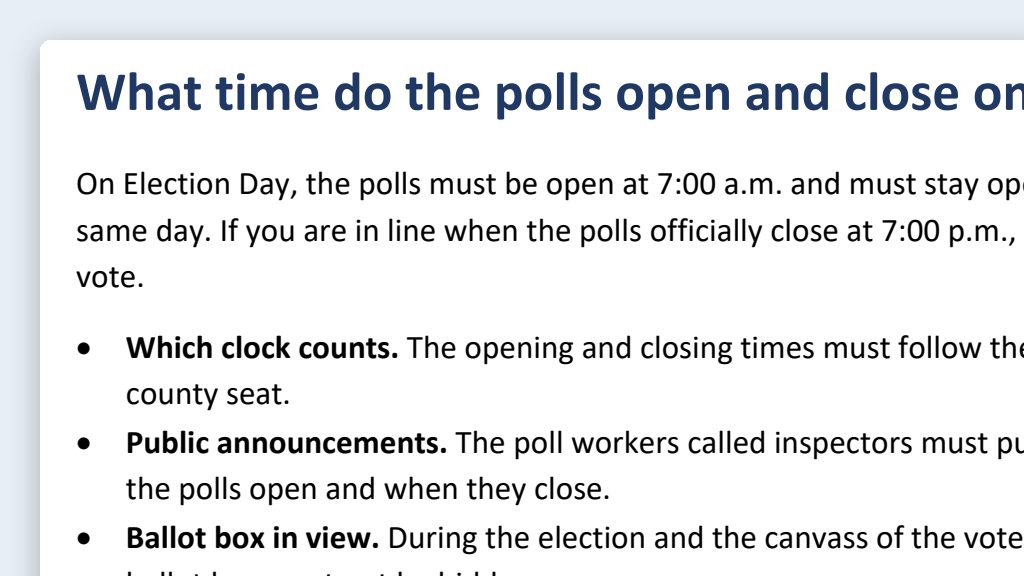
Find every place where we say two different things about the same fact: dates, hours, addresses, phone numbers, deadlines, polling places, or who can do what. Then check what we tell voters against Florida law on Online Sunshine and the Division of Elections website. If a law changed this year, use the version in effect for our next election. Note it when two state sources disagree, too.

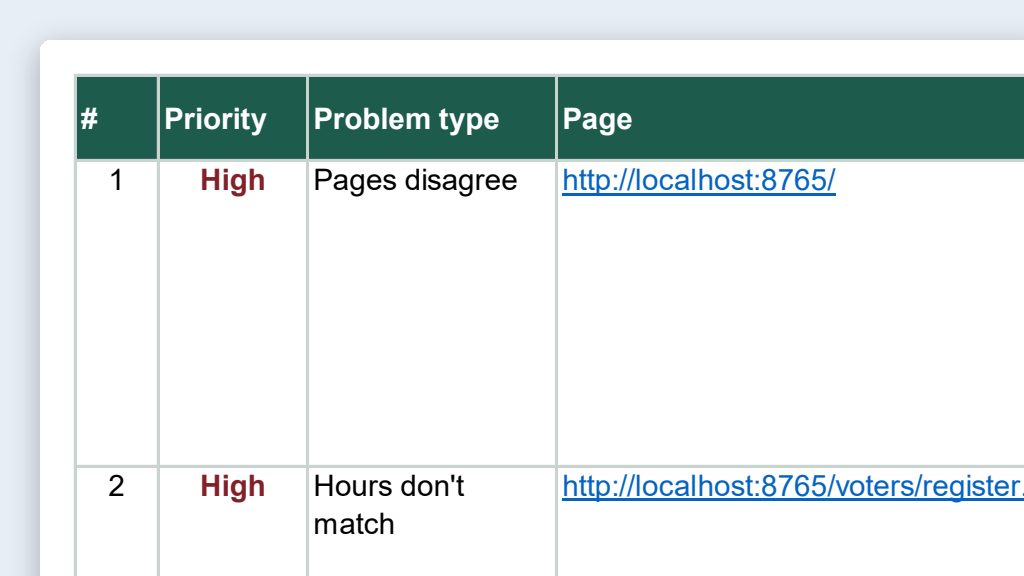
Save an Excel workbook in this folder with one row per conflict: what it's about, what each source says, a link to each, and which one you think is right, or "office to decide." Put anything that could mislead a voter about when, where, or how to vote at the top. Add a tab listing every source you read.
Fill in anything in [brackets] with your own details.
Big site? Start with one topic, like vote-by-mail, across every source.
Prompt 2 · Say it or type it
A short report for the Supervisor
I marked each row real, not a problem, or fixed. Turn the real ones into a short Word report for our Supervisor and save it in this folder. Put the ones that affect voters first, one line each, then a table of the rest grouped by where the fix goes: website, voter guide, notices, or social media.
Prompt 3 · Say it or type it
Check again after the fixes
We fixed the rows marked "fixed." Read those pages and documents again and tell me which ones still say the old thing, including any copies we missed.
What you need
- The Claude desktop app (Code tab) or the ChatGPT desktop app (Codex) and a folder called something like
Contradictions Check. Put it on the C: drive, OneDrive, or an external drive. - Anything the AI can’t reach on its own, saved in the folder. Facebook, Instagram, and other social sites usually block it, so save your recent election posts as PDFs or screenshots. Add any mailer or postcard that isn’t on your website.
- Nothing private. No voter lists, drafts, or internal email. This check is about what the public already sees.
Step by step
- Make the folder and save anything the AI can’t reach, like social posts and mailers.
- Open the folder in the app. In the Claude desktop app, open the Code tab, and in the row under the message box choose Local, then Open folder…. In the ChatGPT desktop app, open Codex, click Add new project (or press Ctrl+O), and pick the folder. See Folder projects for the full walkthrough.
- Say the prompt. Speaking it works as well as typing it (see How to ask). Reading a whole website and its PDFs takes a while, so let it run.
- Open the workbook it saved. Look at the sources tab first. If something you publish isn’t on it, ask it to read that too.
- Check each row, starting at the top. Open both sources and mark the row real, not a problem, or fixed. Send rows about the law to your attorney, and questions about state materials to the Division of Elections.
- Make the report with the second prompt, if your Supervisor wants one.
- Fix each fact everywhere it appears, then check again with the third prompt.
One possible outcome
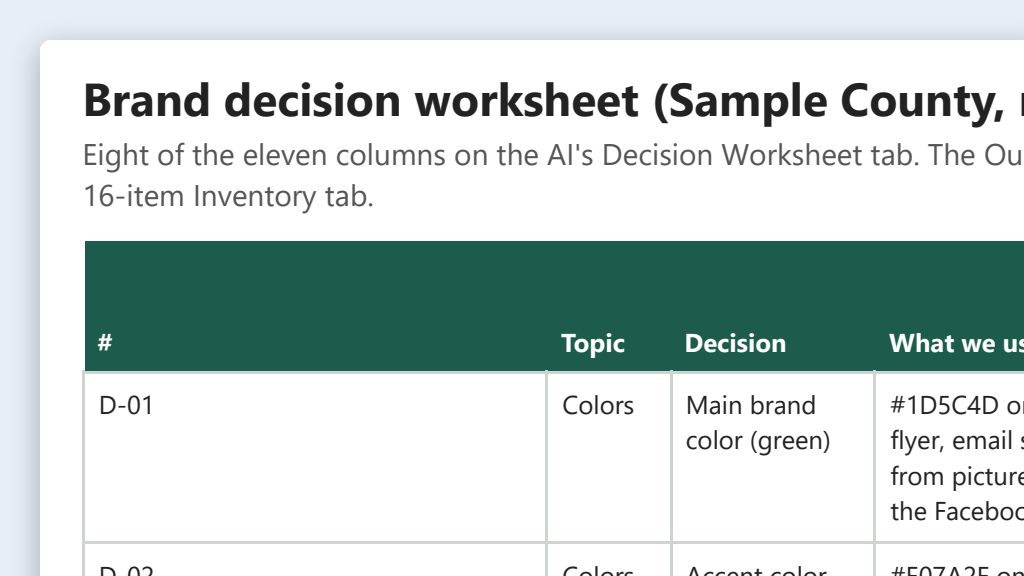
One run of the first prompt, on a stand-in website for a made-up Sample County with a few contradictions hidden in it on purpose.
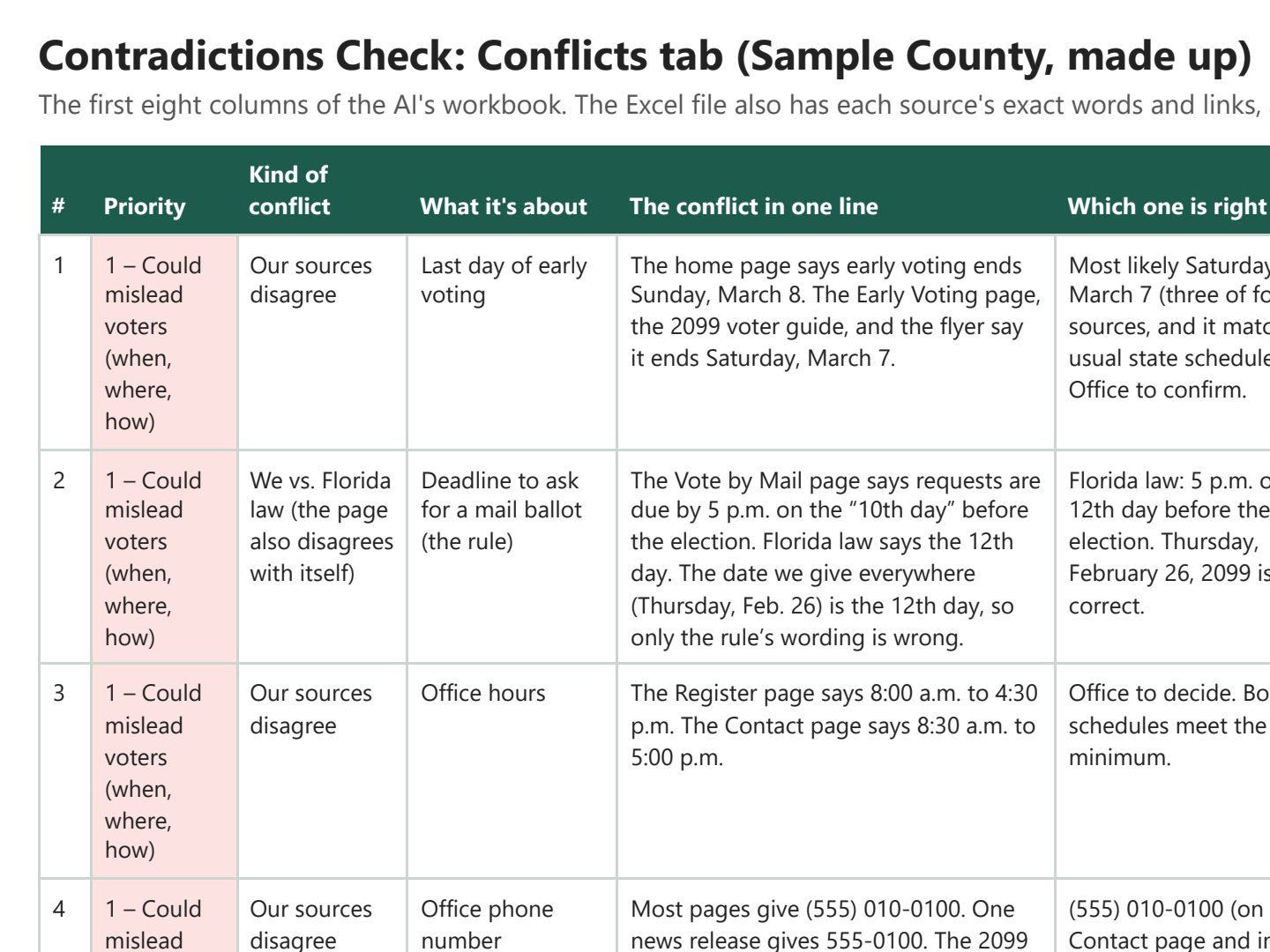 (opens the full version, PDF, 3 pages, 87 KB)
Word, Excel, and PowerPoint files download to your phone; the PDF opens first. File names end in -DRAFT because AI output is a draft until a person checks it. Web addresses shown in these samples are made-up and will not open.
Make it yours
- Time it. Run it when the voter guide is final but before it prints, and again a few weeks before early voting starts.
- One topic at a time. For a quick check, name one topic, like “just vote-by-mail,” and have it read every source for that.
- Keep the folder. Next time, say “Do the same check again and tell me what’s new since last time’s workbook.”
Time: by hand vs. with AI
By hand
1–2 weeks to compare it all
With AI
1–2 days
your time, including review
Estimate. The AI’s reading runs on its own while you do other work. Most of the 1–2 days is you opening both sources for each row and deciding which is right. Rows that need your attorney or the Supervisor take longer. By hand, few offices ever lay everything side by side, because each document gets checked on its own when it’s written.
Checking the work: what an expert looks for
You know this work, so you’re the best person to check it. Open every file it made and read every page. If part of it is outside what you know, hand that part to someone who knows it. These are the spots that most often need a fix:
- Open both sources for every row before you change anything, and mark it real, not a problem, or fixed. Some rows won’t hold up: two phone numbers that both work, or a page someone already fixed.
- The AI can find two things that disagree. Deciding which one is right is your call, because you know which date the Supervisor set. Rows about the law go to your office’s attorney. When two state sources disagree, ask the Division of Elections.
- When a row cites a statute, open it on Online Sunshine and read the History line at the bottom (the line under each statute that names the laws that changed it). Online Sunshine can show a law passed this year under the current year’s heading before it takes effect.
- Compare the sources tab with your website and your list of what you publish. Dates and addresses inside pictures, like home-page banners and social graphics, are easy to miss. Check those yourself.
- Fix each fact everywhere it lives. A wrong date is usually in several places: the web page, the PDF guide, a news release, and a social graphic.
Last reviewed October 2, 2026.