The problem
Election information has to work for every voter, including people who use screen readers, magnify their screens, navigate with a keyboard, or read at different levels. Your site may carry years of PDFs: scanned notices, old forms, and handbooks made without real headings. A federal rule now sets a deadline for state and local government websites to meet an accessibility standard. Fixing everything by hand is a big job, and it’s hard to know where to start.
The prompts
Start in a folder
…\AI Projects\Accessibility Checks\
Make the folder
On your C: drive, OneDrive, or an external drive. Your choice.
Open it in the app
Claude: Code tab → under the message box, choose Local → Open folder… ChatGPT: open Codex, click Add new project (or press Ctrl+O), then pick the folder. To add more folders later, open the project menu, choose Edit project, then Add folder.
Say what you want
Use the prompt below. Then open what it saved in the folder.
Say them out loud or type them. Change the words to fit your office. The AI goes and gets the public documents itself and saves what it makes in the folder.
Prompt 1 · Say it or type it
Check our pages
Go to our website and check these pages for accessibility problems under WCAG 2.1 Level AA: [Page addresses]. Look at the page title in the browser tab, the headings, alt text, link text, tables, reading level, and anything that depends on color alone. For images that are missing alt text, suggest some.

Save a report in this folder as an Excel file, one row per problem, with the page, where the problem is, why it matters, how to fix it, and whether we can fix it in our page editor or need our web vendor. At the end, list what you couldn't check just by reading the page, like color contrast and keyboard use.
Fill in anything in [brackets] with your own details.
Prompt 2 · Say it or type it
Turn a PDF into a web page
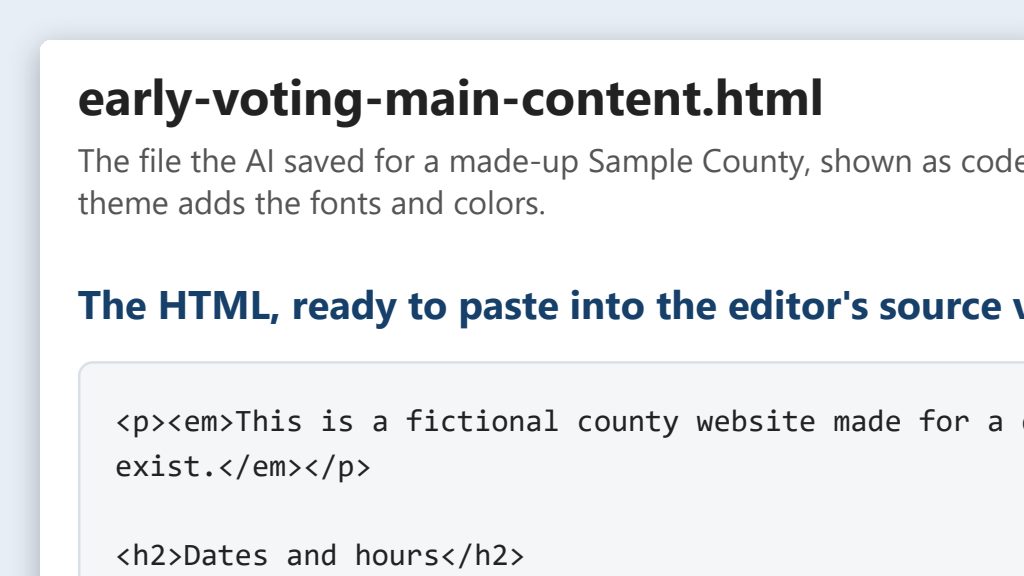
Download the PDF at [PDF address] into this folder and turn it into an accessible web page. Save the clean HTML as a file here, keep every fact and number exactly as written, and write alt text for any images or charts. If anything in the PDF looks inconsistent, like totals that don't add up, keep it as written and list it for me.
Fill in anything in [brackets] with your own details.
Compare the result to the PDF line by line. Tables and numbers are where copy errors happen.
Prompt 3 · Say it or type it
Rewrite in plain language
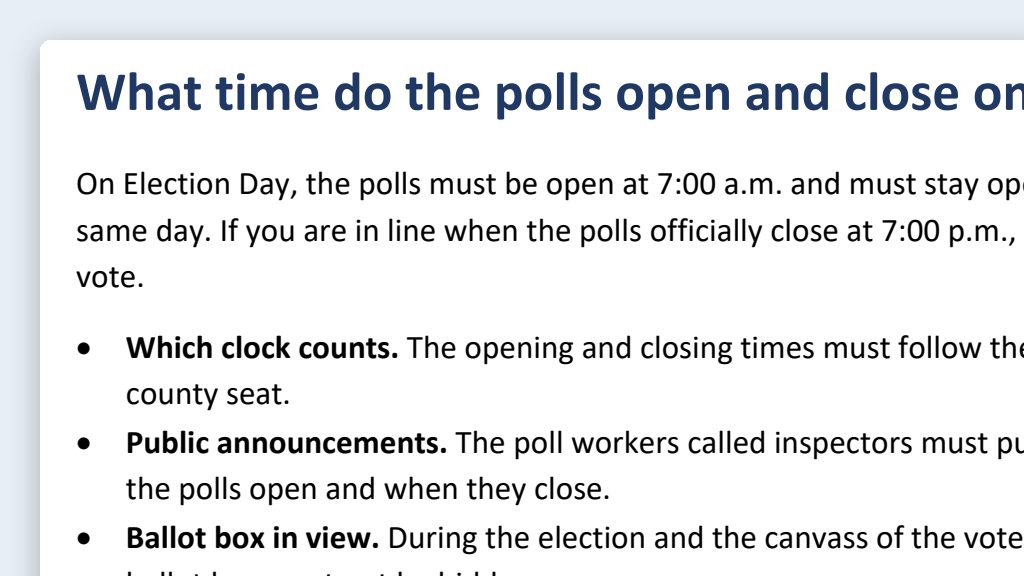
Rewrite the main text of [Page address] at about an 8th-grade reading level, without changing any fact, date, or rule. Save it as a two-column table, original next to rewrite, so someone who knows the procedure can check it. After the table, list any spots where the page and the law or a state form seem to disagree.
Fill in anything in [brackets] with your own details.
What you need
- The Claude desktop app (Code tab) or the ChatGPT desktop app (Codex) and a folder called something like
Accessibility Checks. Put it wherever you like: the C: drive, OneDrive, or an external drive. - The web addresses of the pages and PDFs you want checked. The AI reads the live pages and downloads the PDFs itself. Copy each address from your browser’s address bar. If your office moved to a new web address, the old one may only redirect there.
- An automated checker to confirm the fixes:
- WAVE, free from WebAIM, for web pages. It has browser extensions for Chrome, Firefox, and Edge.
- Adobe Acrobat Pro’s accessibility checker, for PDFs.
- Microsoft Office’s Accessibility Checker (Review → Check Accessibility in Word, Excel, PowerPoint, and Outlook), for documents before you turn them into PDFs.
- The WebAIM Contrast Checker for colors.
- A person who knows the procedure, to confirm plain-language rewrites didn’t change the meaning.
Step by step
- Start where voters go most. Vote-by-mail, early voting, polling places, ID, registration, and your newest PDFs. Old archive pages can wait.
- Make the folder and open it in the app. In the Claude desktop app, open the Code tab, and in the row under the message box choose Local, then Open folder…. In the ChatGPT desktop app, open Codex, click Add new project (or press Ctrl+O), and pick the folder. Folder projects walks through it.
- Run WAVE on each live page in your web browser. That gives you the automated list of problems.
- Say the first prompt with the page addresses. Speak it or type it. It covers what automated tools can’t judge well, like whether alt text and link text make sense, and reading level. If the AI says it can’t open a page, open the page in your browser, press Ctrl+S to save it into the folder, and tell the AI to use the saved copy.
- Open the report from the folder and fix the page in your editor’s source view. Follow the clean HTML rules. Problems in the site template, like banners, menus, and footers, usually can’t be fixed in the editor. Send those rows to your web vendor.
- For each PDF, decide: fix it, or make it a web page. Use the table below. To make a web page, use the second prompt, open the HTML file it saved, compare it to the PDF line by line, and publish it.
- Rewrite hard-to-read text with the third prompt. Have someone who knows the procedure check the side-by-side table.
- Recheck. Run WAVE again. Press Tab to move through the page with the keyboard: you should always see where you are and be able to reach every link and button. For any PDF you keep, run Acrobat’s accessibility checker.
- Keep a simple log. Say “Add today’s fixes to the log in this folder”: page or PDF, date checked, who checked it, and what was fixed. It shows your progress toward the federal deadline.
Web page or PDF?
To remediate a PDF means to fix its accessibility problems. That usually means adding tags (hidden labels that tell a screen reader what’s a heading, a paragraph, or a table), setting the reading order, and adding alt text. It’s slow, careful work. For a lot of voter information, a web page is simpler and works better on a phone.
| Make it a web page when… | Keep it as a PDF (and make the PDF accessible) when… |
|---|---|
| Voters read it on a phone: hours, locations, deadlines | It has to be printed, signed, and returned |
| It changes every election | It’s an official state form. Link to the Division of Elections’ version instead of rebuilding it. |
| It’s mostly text, lists, and simple tables | It’s a long reference document people print. Add a short web summary too. |
One possible outcome
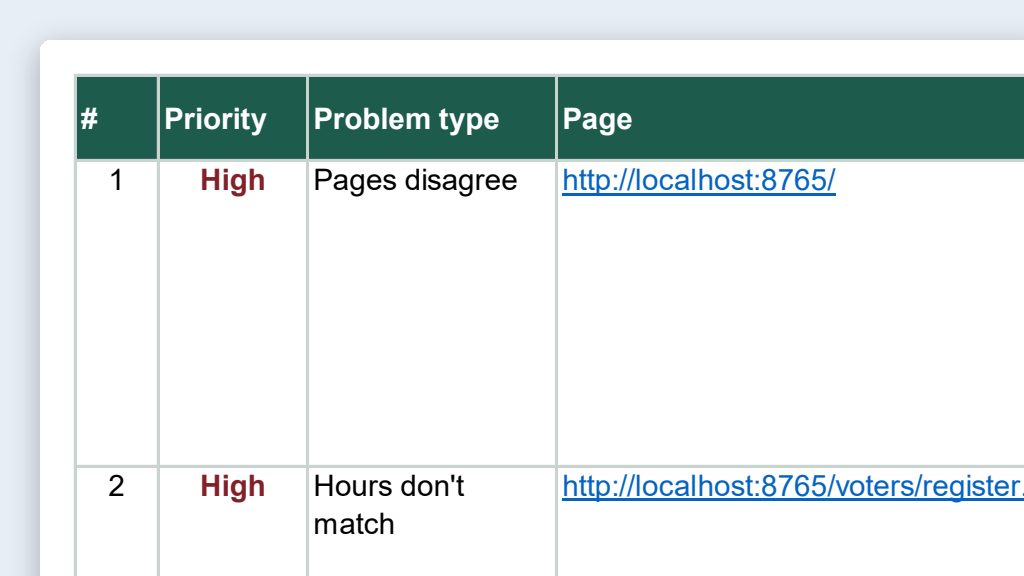
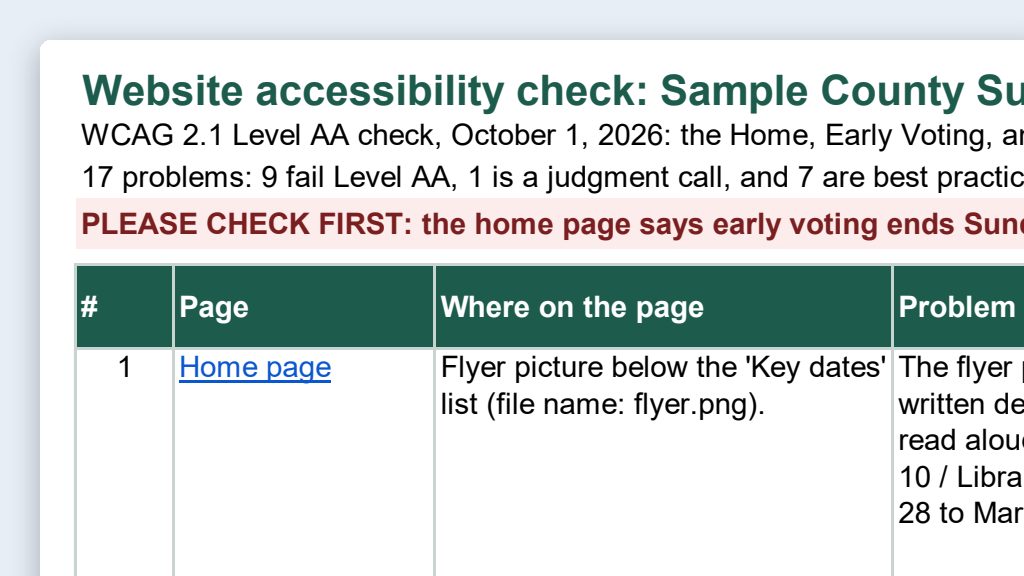
One run of the first prompt, on three pages and a voter guide from a stand-in website for a made-up Sample County.
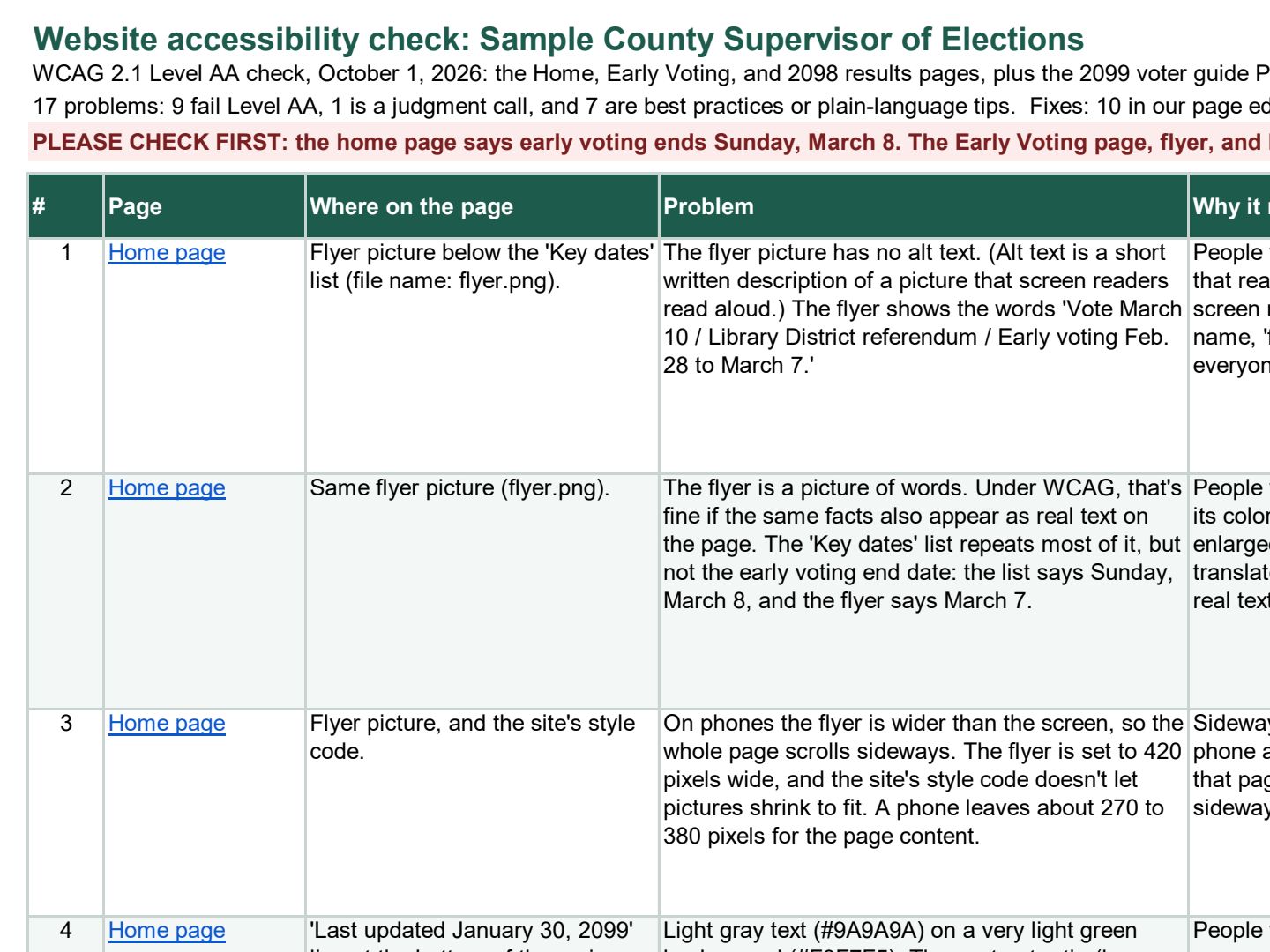 (opens the full version, PDF, 7 pages, 264 KB)
Word, Excel, and PowerPoint files download to your phone; the PDF opens first. File names end in -DRAFT because AI output is a draft until a person checks it. Web addresses shown in these samples are made-up and will not open.
Make it yours
- Explaining a statute? Plain-language explainers for statutes and rules keeps the legal text exact and explains it next to it.
- Find problems across the whole site. The website content audit flags vague link text and old content on every page.
- Slides and documents. Run Microsoft Office’s Accessibility Checker on decks and handouts before you save them as PDFs. Fixing the Word or PowerPoint file first is usually easier than fixing the PDF afterward.
Time: by hand vs. with AI
By hand
2–4 hours per long page or PDF
AI’s part, measured
About 45 minutes
in a test run of these prompts
With AI
About 1 hour
your time, including review
About the measured time: “AI’s part” is how long the AI took, start to finish, in a test run of these prompts on September 27, 2026. It works on its own while you do something else. “By hand” and “With AI” are estimates of your own time.
Honest estimate for a 10–20 page PDF turned into a web page, or one long web page reviewed and fixed. The AI drafts the report, alt text, headings, and plain-language rewrites while you do other work. Running the checkers, testing with a keyboard, and comparing the result to the original take most of the hour.
Checking the work: what an expert looks for
You know this work, so you’re the best person to check it. Open every file it made and read every page. If part of it is outside what you know, hand that part to someone who knows it. These are the spots that most often need a fix:
- Automated checkers and AI catch many problems, but not all. They can tell you alt text is missing; they can’t always tell whether it makes sense. A person still reviews.
- AI can’t reliably judge color contrast from code or screenshots. Use a contrast checker for every text and background pair.
- Scanned PDFs are pictures of text, and AI can misread them. Compare every number and date to the original.
- When a web page replaces a PDF, keep the old PDF address working (a redirect, or a note linking to the new page) so printed flyers, QR codes, and old links don’t break.
- Plain-language rewrites must not change the rules. Leave ballot language and quoted statute text exactly as they are, and have someone who knows the procedure check the side-by-side table.
Last reviewed October 2, 2026.